













Vision Help Articles
Grey Fleet Checks
As a responsible employer you should ensure that employees that use their own vehicles for business journeys should have a grey fleet check to ensure both drivers and vehicles are legal to drive on company business. As a minimum a grey fleet checks should include:
- Driver licence check
- Vehicle insurance check
- MOT check
- Tax Check
Vision grey fleet checks incorporate Vision Licence checking as well as checks on all the above using a direct link with the DVLA and includes AI and human checks of insurance documents to ensure that the driver has valid insurance and can use their vehicle for business purposes. In addition, you can add your own settings and company policies including:
- Vehicle Age
- Min and Max CC
- Fuel type
- Max mileage
- Driver lower and upper age limit
- CO2 emissions
- Euro Status
These can be ignored if the driver uses their own vehicle for buisness use. Please be aware that in order to carry out grey fleet checks, you must also use the Vision Licence Check feature, details of which can be found here
Setting up Grey Fleet
First make sure all your grey fleet drivers have been added to Vision and fall into a licence checking policy. Drivers should be given a category that differentiates them from your HGV drivers:

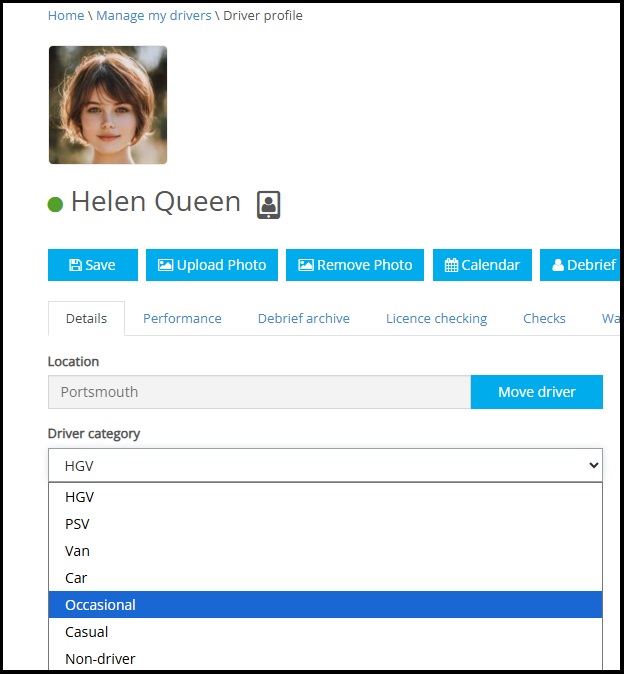
When selecting non-commercial drivers make sure that you adjust analysis type to exclude them from analysis:

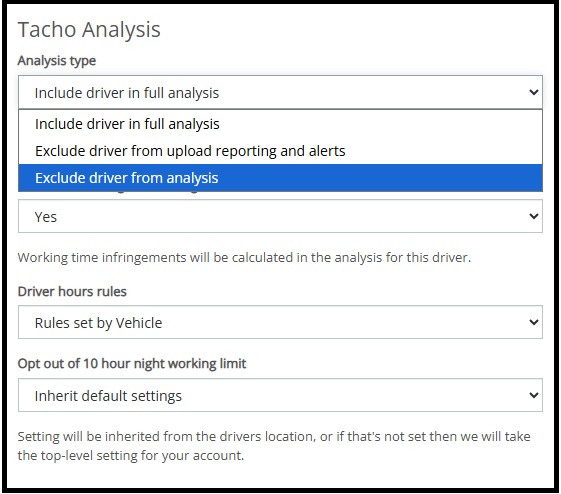
This will stop unnecessary alerts from showing on Vision.
Manage Grey Fleet Settings
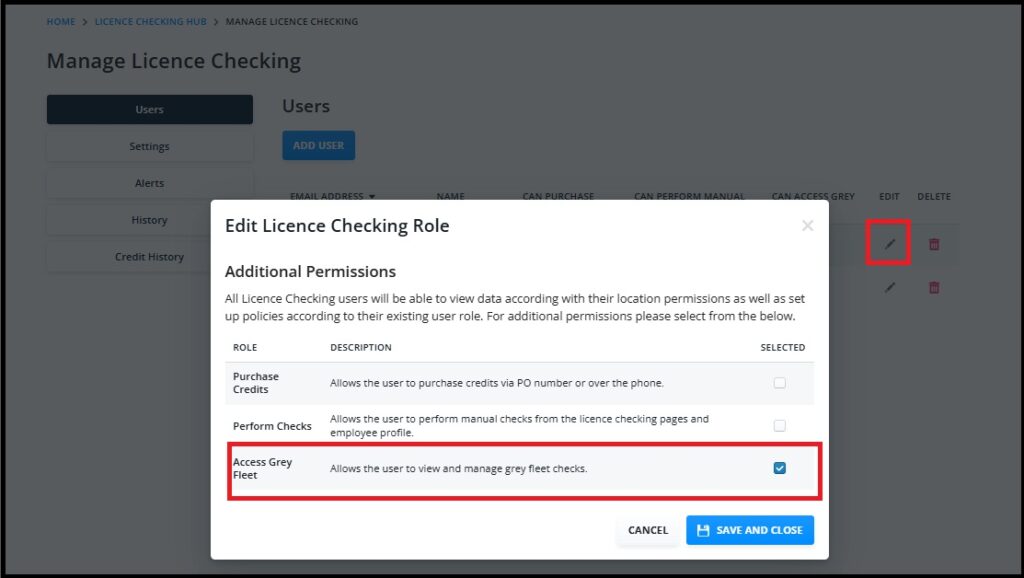
Once all your drivers are added to Vision go to the licence checking page and update those users that you want to access grey fleet with the relevant permission. Select “Manage Licence Checking”/ “Users”/”Edit”and then enable the “Access Grey Fleet” permission:

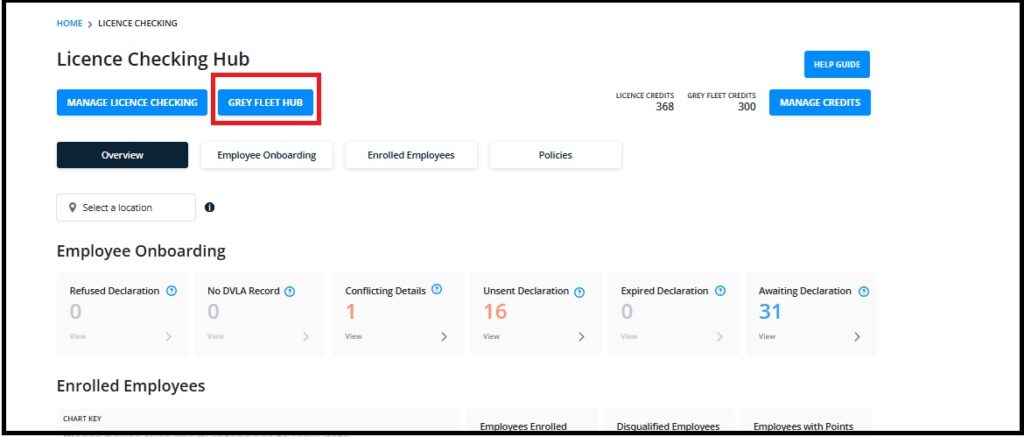
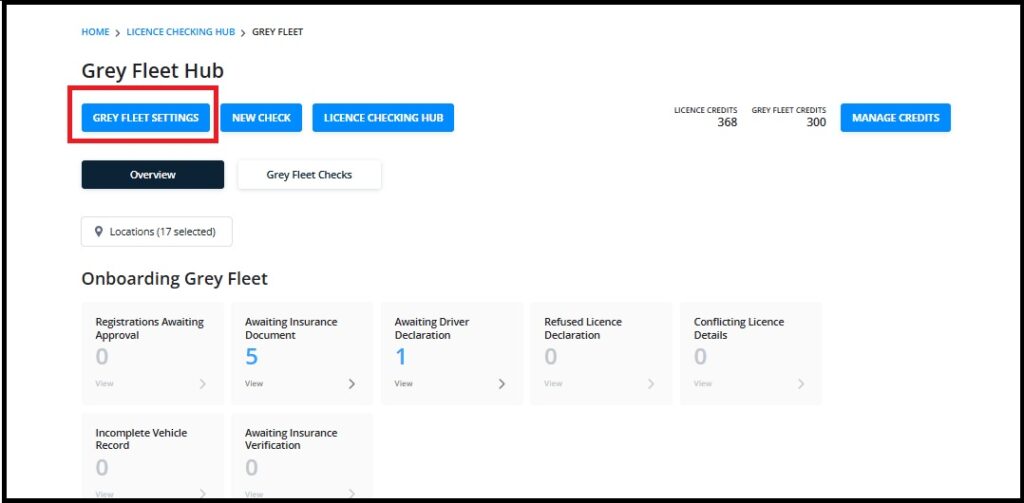
Return to the “Licence Checking” hub, select “Grey Fleet Hub”, then select “Grey Fleet Settings”:


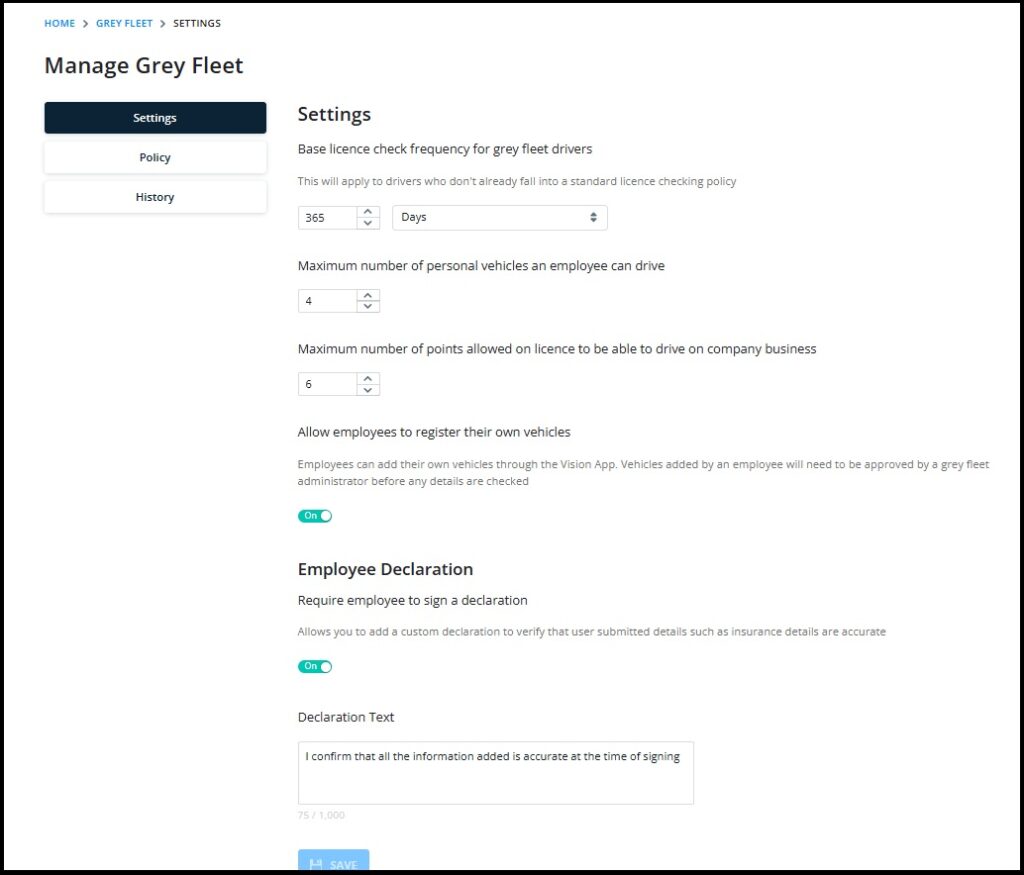
Complete the settings as required for your Grey Fleet drivers.
- The licence check frequency section is there to pick up any drivers that don’t already fall into a licence checking policy. You can adjust the frequency according to company requirements.
- The number of vehicles an employee can use for company business can be updated to allow more than 1 vehicle.
- You can include the maximum number of points a driver is allowed to drive on company business.
- Grey fleet drivers can register their own vehicles via the Vision App if they have it if this function is enabled.
- You can also update the sign off wording to confirm that the driver understands the importance of sending the correct information for the check.
Once your settings are added, you can then add optional company policies to your grey fleet check requirements:

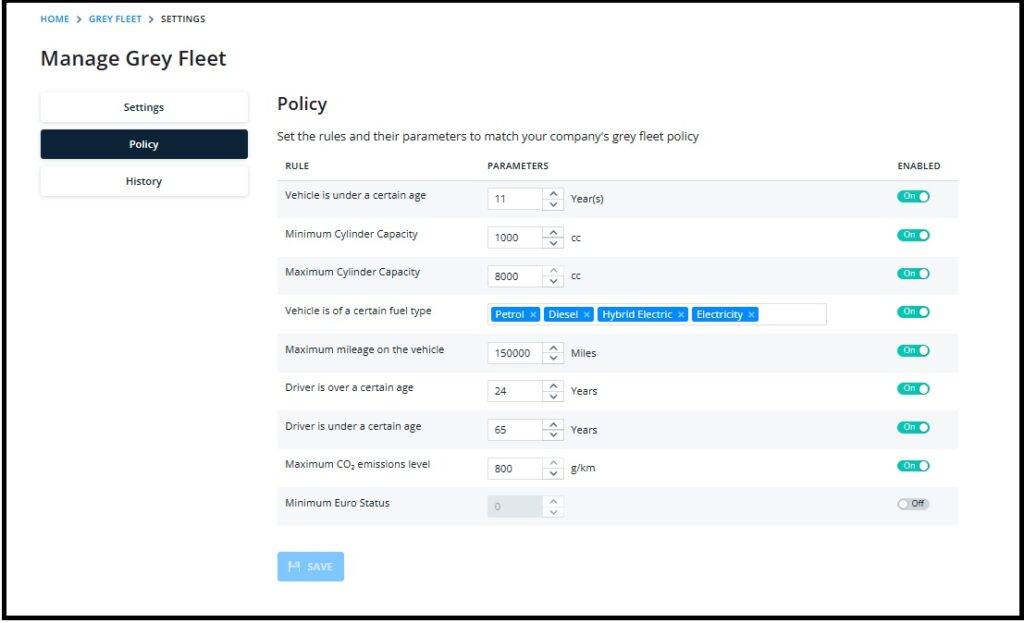
These include:
- Vehicle Age
- Min and Max CC
- Fuel type
- Max mileage
- Driver lower and upper age limit
- CO2 emissions
- Euro Status
Once your settings are complete, return to the Grey Fleet Hub Page:

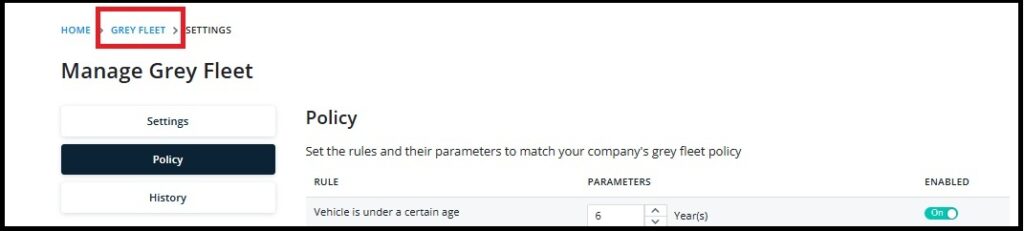
You can now start your checks by clicking “New Check”

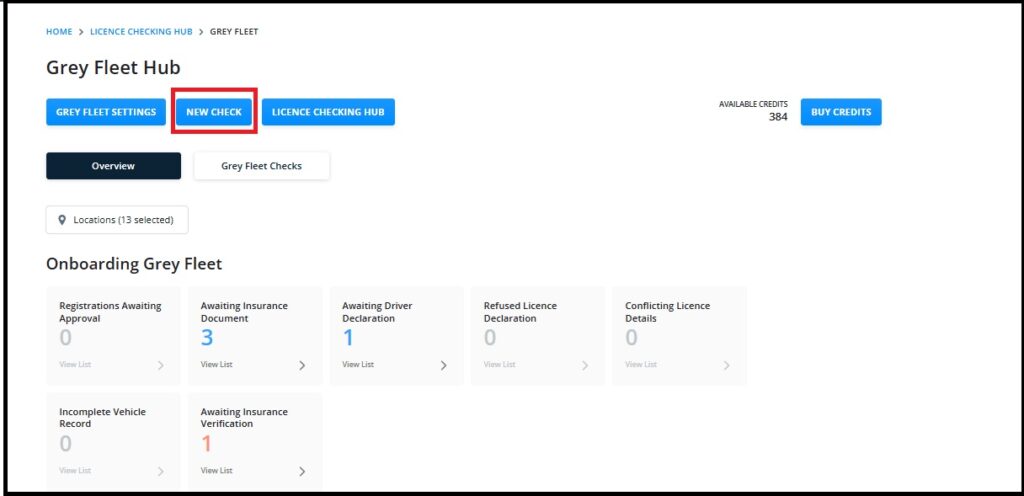
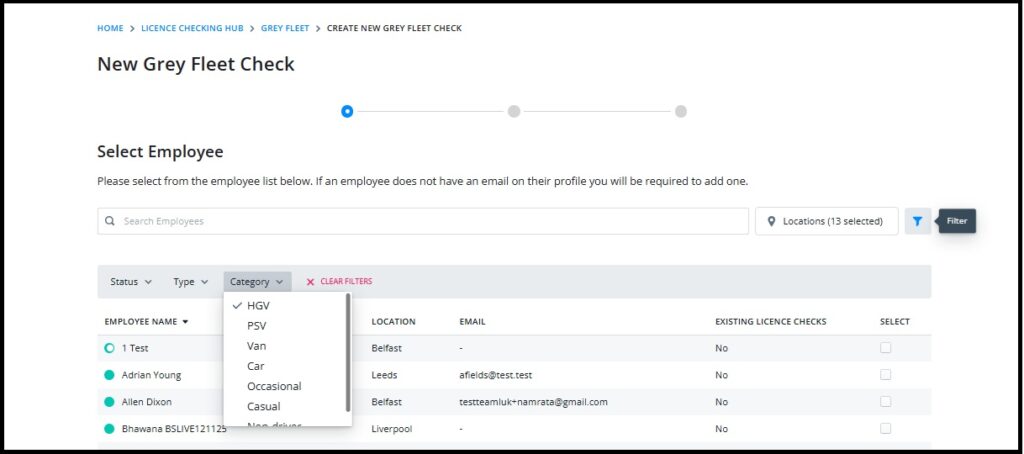
You will see a list of all your drivers. Click the filter option so that you can view the list by driver type to see results for just your grey fleet drivers:

Or simply search for the driver that you want to select:

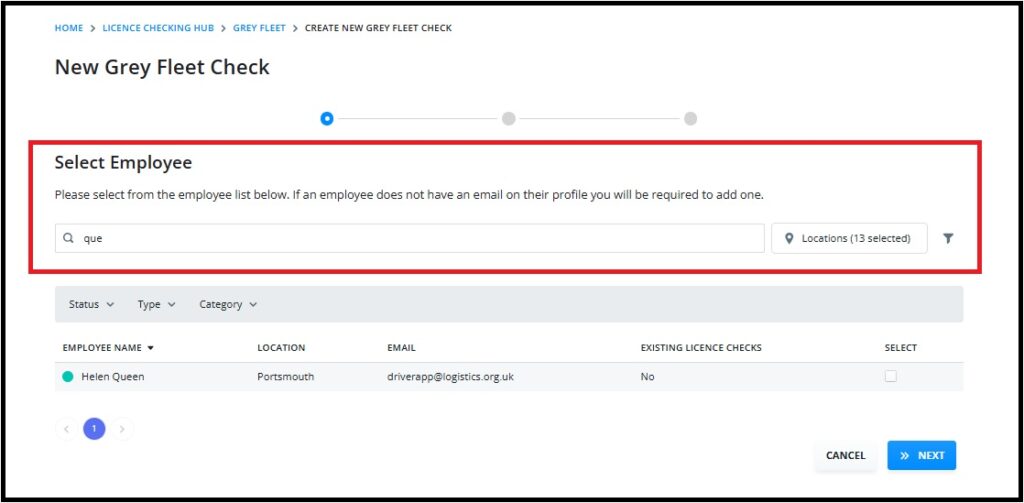
Select “Next”
Add in the email if it isn’t already added, and the drivers’ vehicle registration:

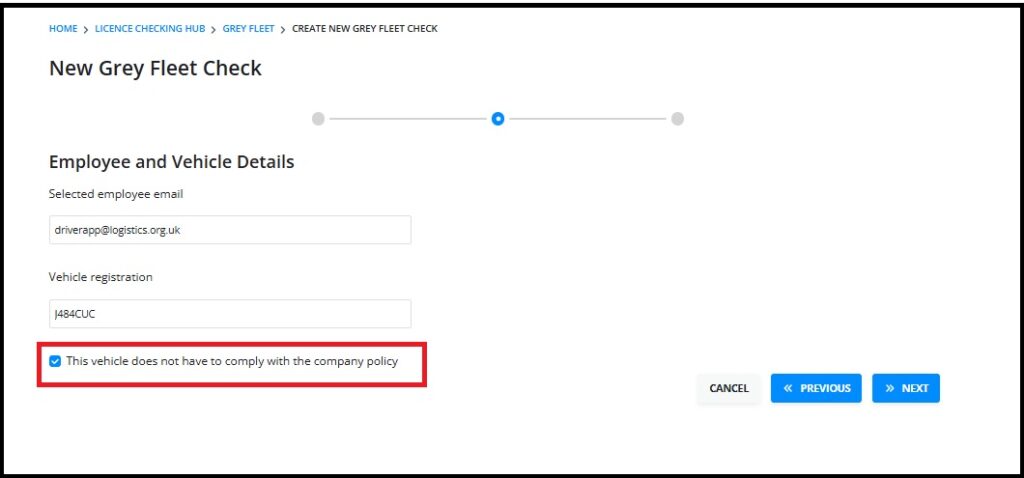
At this point you can choose to opt the driver out of the buisness policies you have set if the driver is using their own car for buisness use as opposed to a vehicle where the company has provided funds to purchase the vehicle to be used for buisness purposes.
Click “Next” to see a summary of the details:

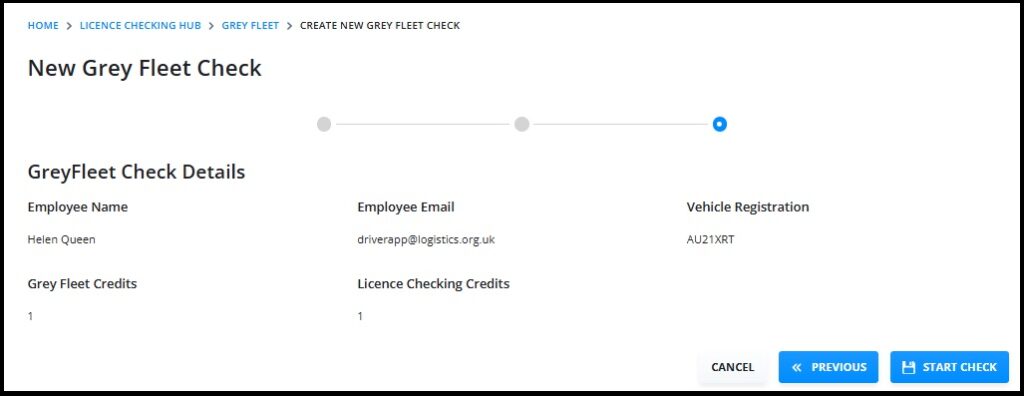
Click “Start Check”
This will push out an email like the one shown below:

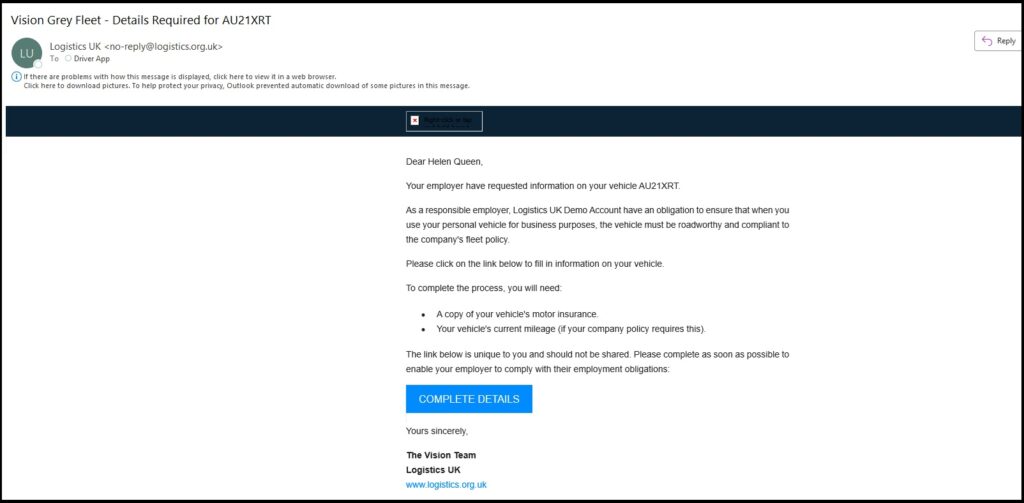
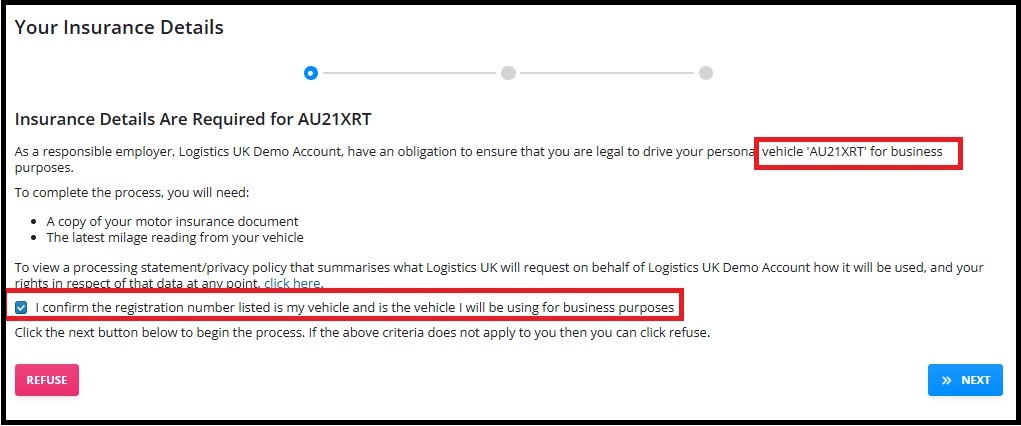
The driver will initially confirm their vehicle registration is correct:

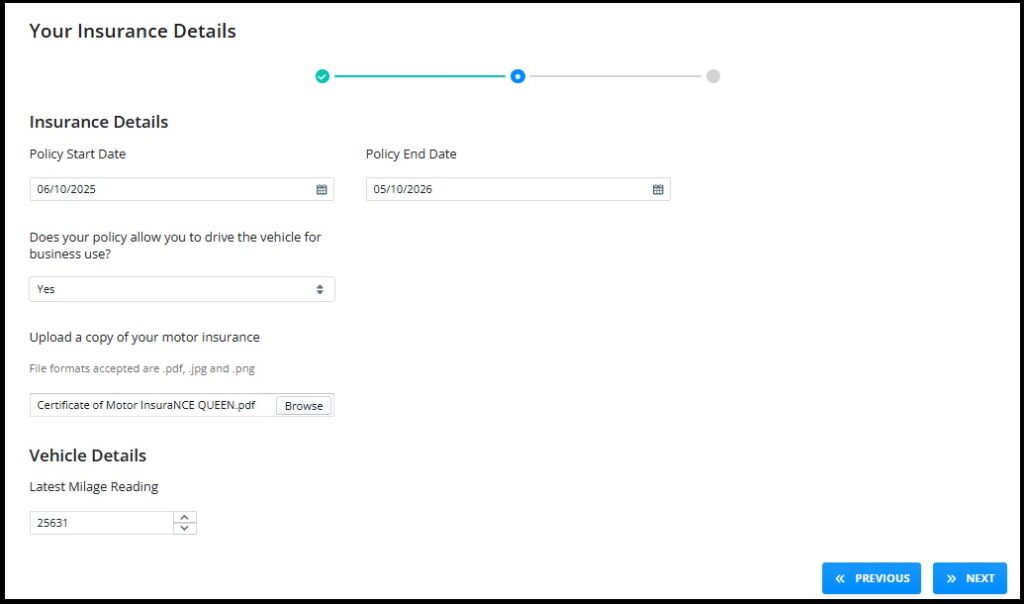
Clicking “Next” the driver will add details of their insurance as well as uploading their policy:

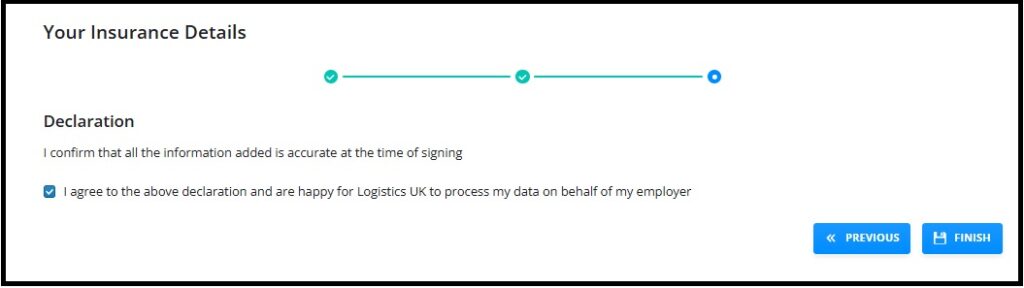
Finally, they will agree to the declaration and select “Finish”

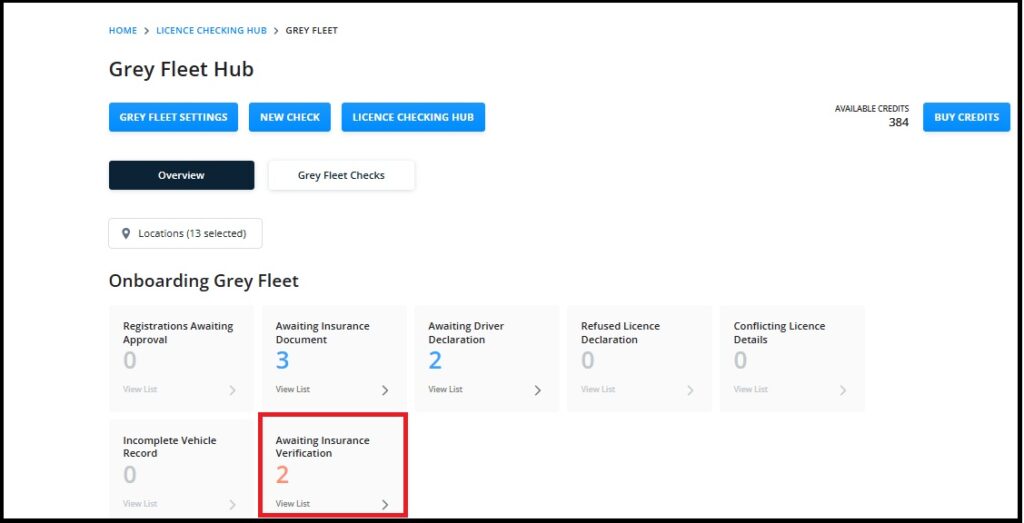
This will automatically start the check process. You can monitor progress via onboarding section of the hub and clicking each tile to get the details:


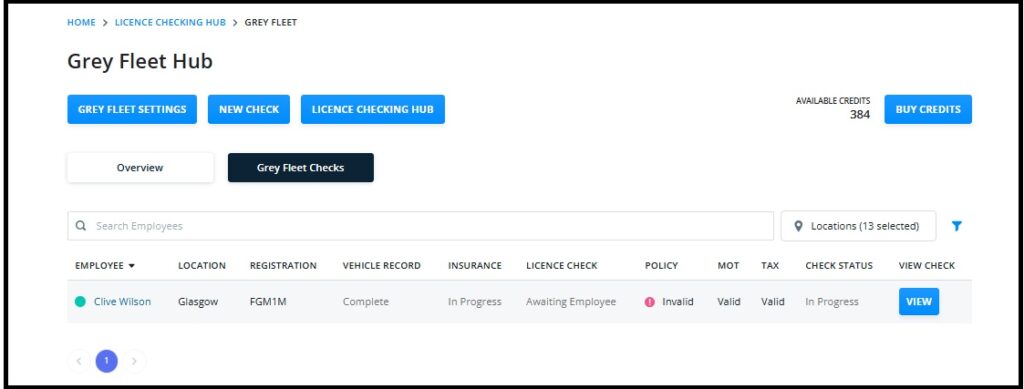
Once the onboarding process is complete you can view results within the “Enrolled Grey Fleet” section of the Hub:

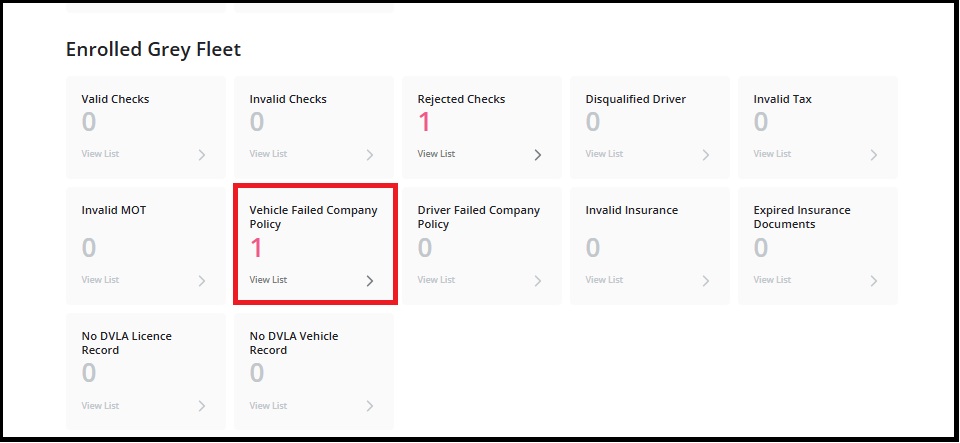
Drilling down to the detail by clicking the tile.
If you want to view the progress of all your checks, select “Grey Fleet Checks”:

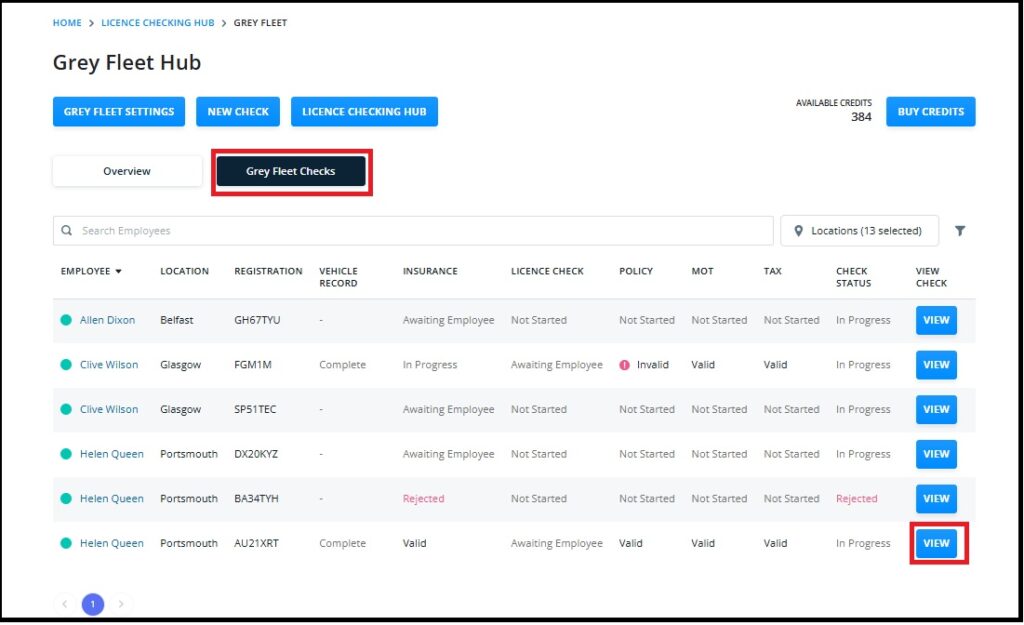
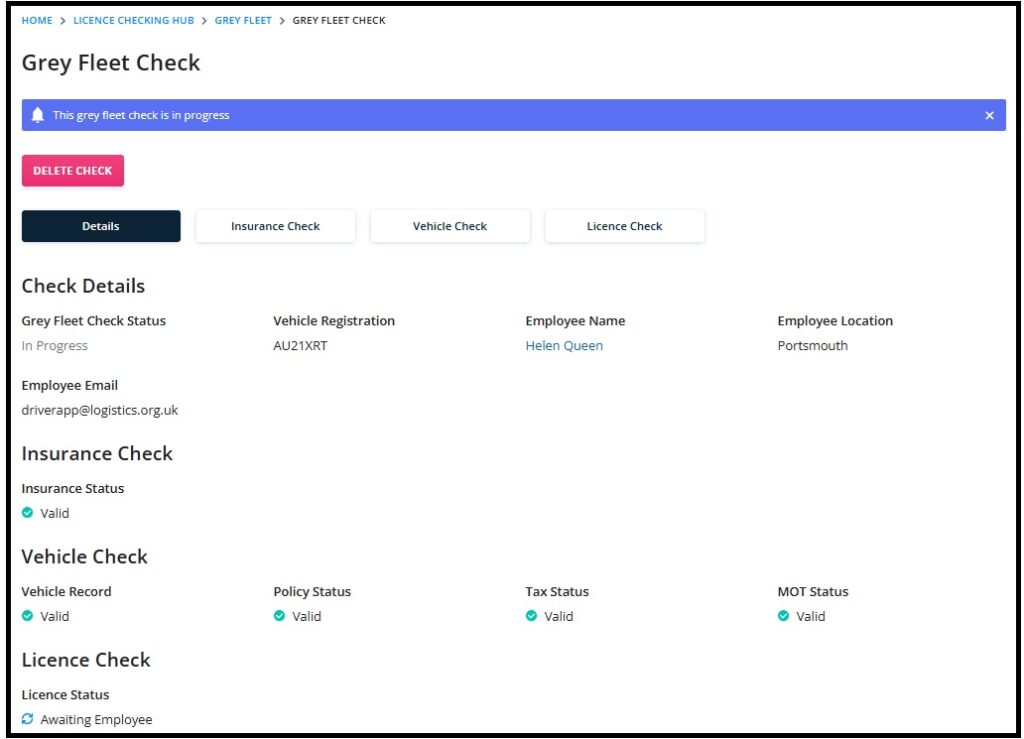
Select “View” to see the detail:

Frequency of Grey Fleet Checks
Grey fleet check frequency is based on various aspects of the data examined. Details are as follows:
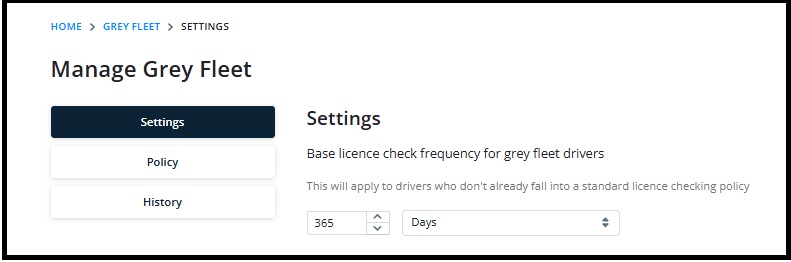
- Licence Checks- this is based on the frequency of the licence checking policy that the driver belongs to. If the driver is not part of an overall policy, then the licence check frequency will be based on the “Grey Fleet Settings” section:

If an insurance check is due, and the driver has not had a licence check within the last 28 days then a new licence check will take place.
- Insurance Checks- checks are based on the expiry date of the driver’s insurance. 1 week prior to the expiry of their current insurance the driver will receive a declaration form so that they can upload their new insurance details. If the driver has a different vehicle, the “New Check” process should be followed.
- MOT, Tax, Emissions etc- This is checked weekly linking directly to the DVLA database.
How to monitor your Grey Fleet Checks
Results can be monitored by regularly checking the “Grey Fleet Hub” or by monitoring “Grey Fleet Alerts”:
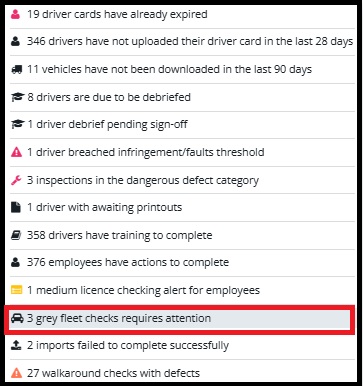
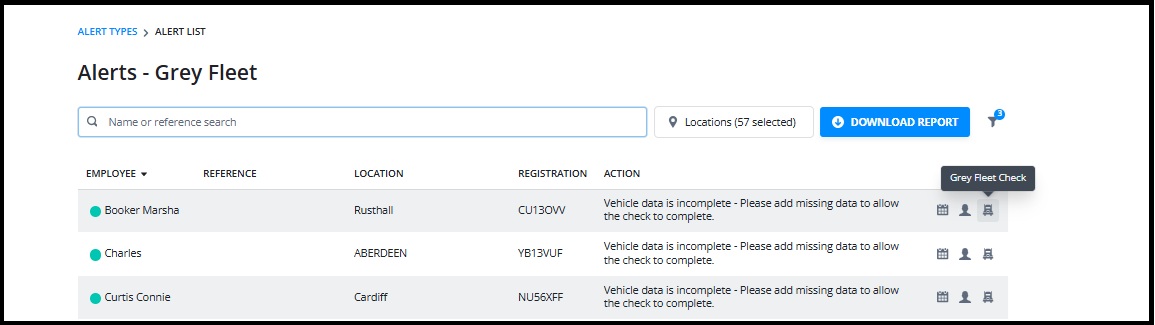

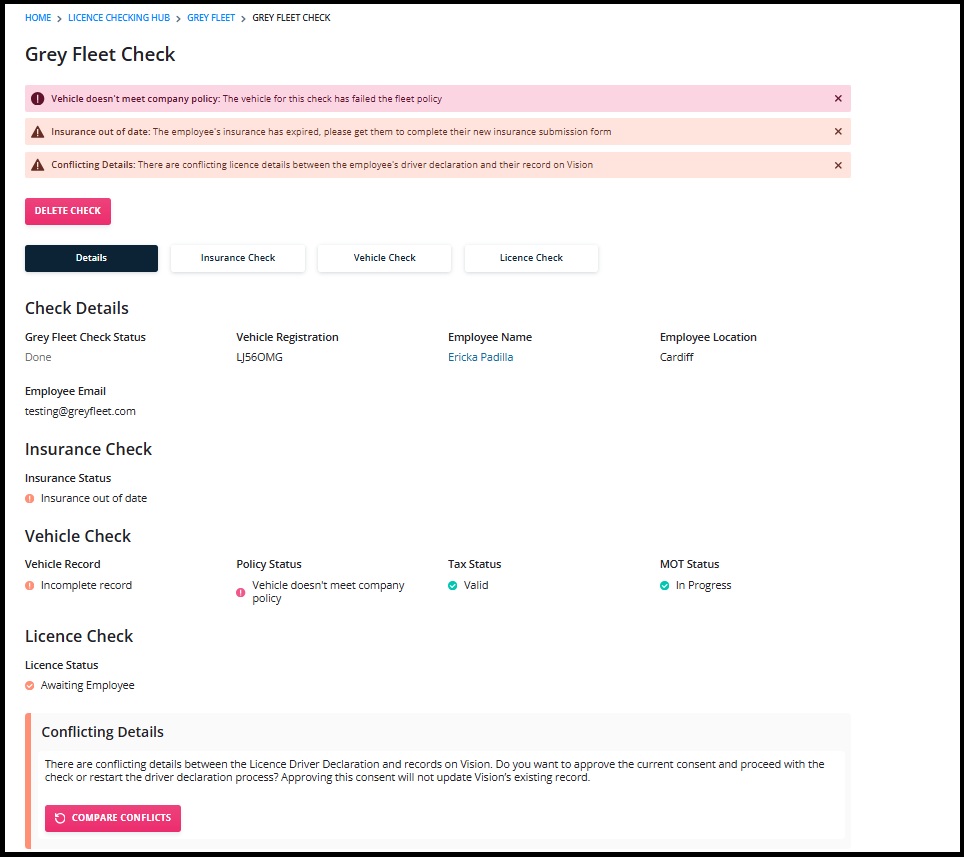
Clicking the “Grey Fleet Check” icon will take you directly to the issue giving visibility of the problem and offering actions to rectify it:

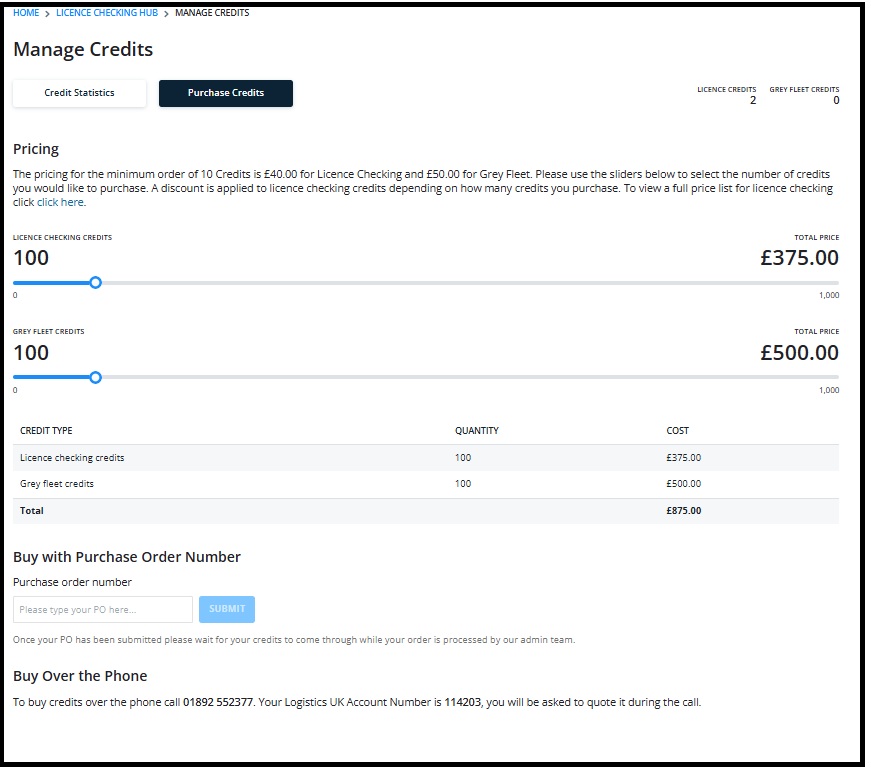
Purchasing Credits
The “Manage Credits” section includes grey fleet credits, allowing you to purchase them through Vision using a purchase order or by contacting the Vision Admin team:

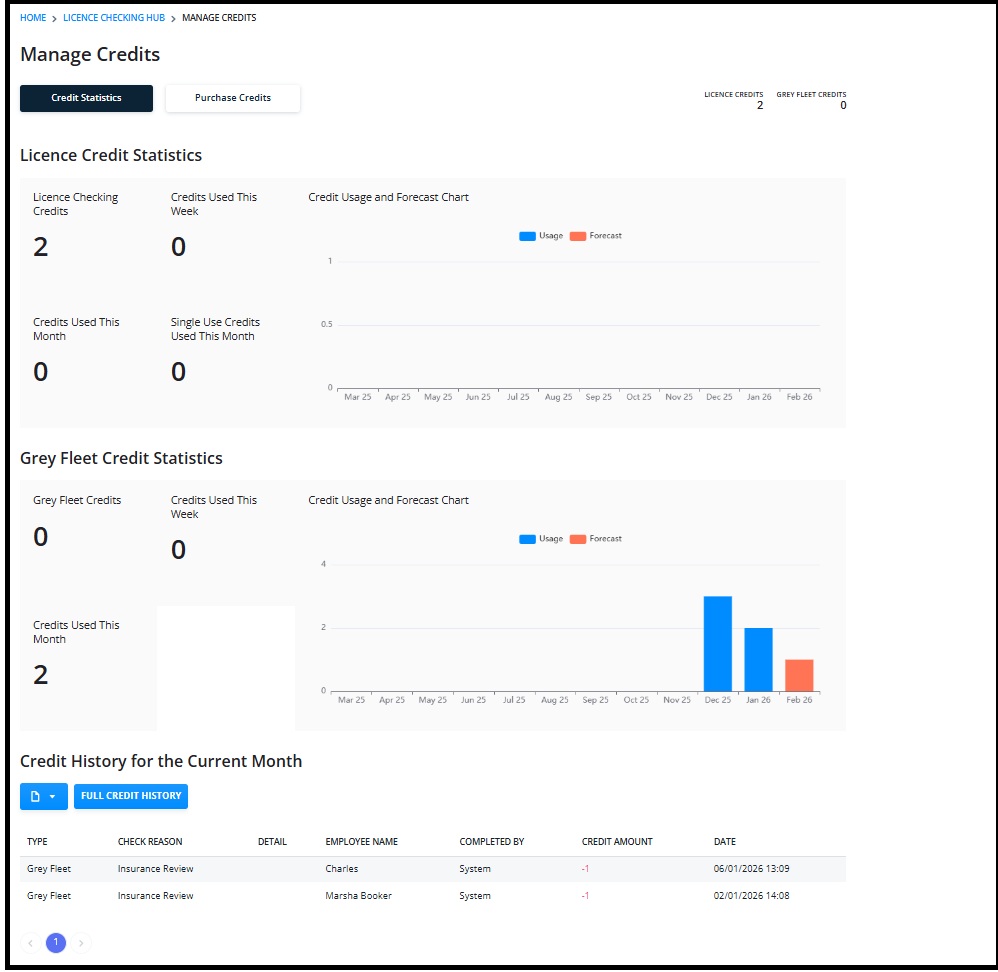
You can see how many credits you have available in the “Credit Statistics” section. You can also see the number used and how many credits you will need to fulfil your policies:

More Vision Help Articles Articles



Related Pages
Check out more news and media
Discover More

Become a Member
Our membership packages provide you with the tools to keep your operation safe, efficient and compliant.
Learn more

Press Releases
Latest updates, insights, and expert commentary shaping the future of logistics, transport, and supply chains across the UK.
Learn more

Services
Discover the full range of services from Logistics UK, designed to keep your operation safe, efficient, and compliant.
Services

Events
Discover upcoming Logistics UK events designed to bring industry leaders, policymakers, and businesses together.
Events
Stay Ahead. Stay Compliant. Stay Connected.
Join thousands of logistics professionals using Logistics UK to navigate industry change with confidence.
Join Us