













Vision Help Articles
Planned Maintenance
The maintenance planner in Vision allows you to add maintenance appointments and upload relevant documents.
Contact [email protected] to ask for the Planned Maintenance feature to be enabled.
Once set up you will be able to:
- Add and schedule various inspections to each vehicle.
- Upload documents once the inspection has taken place.
- View the stored documents on the vehicles profile.
- Open the year planner to see activities for all vehicles.
Adding an activity
Go to Manage my Fleet and select the Maintenance tab:
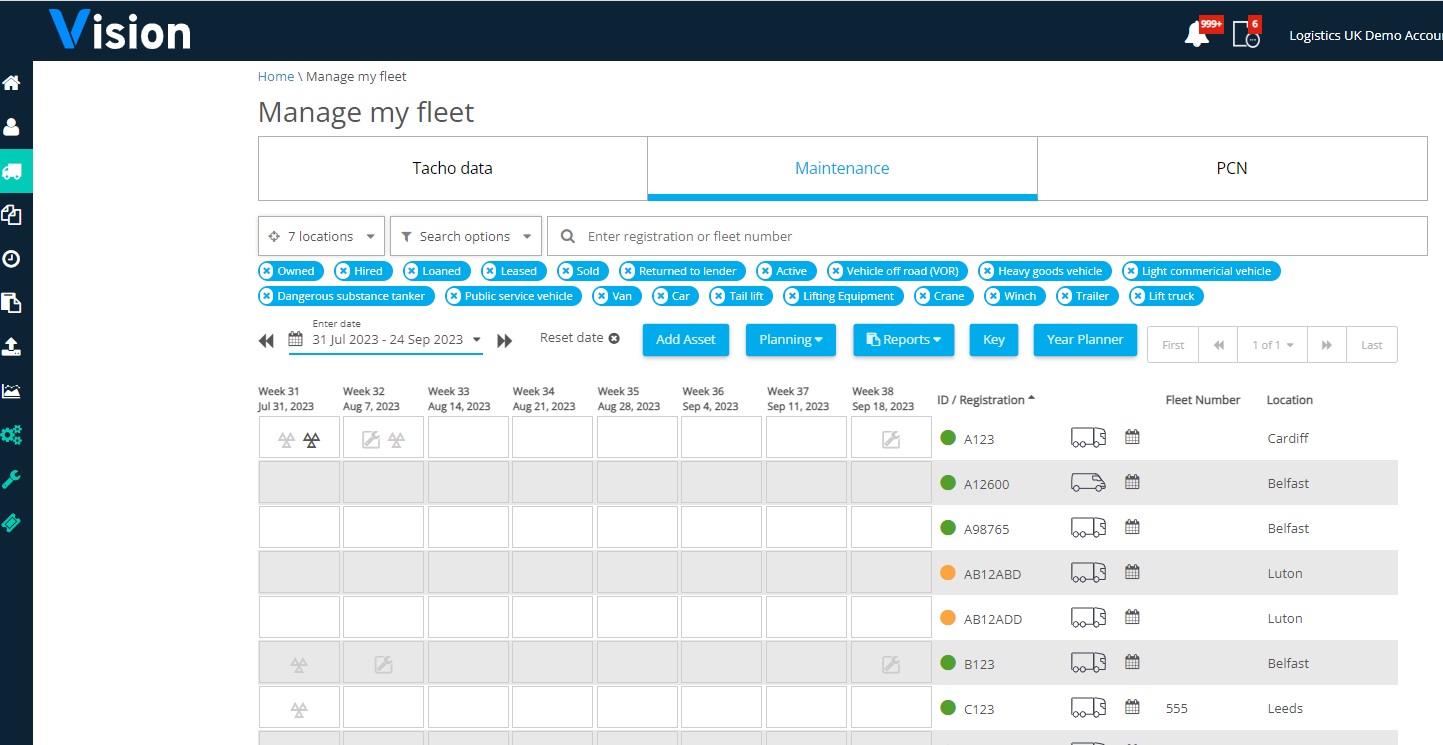
You can add activities to multiple vehicles by clicking the “Planning” button and "Add Entry":
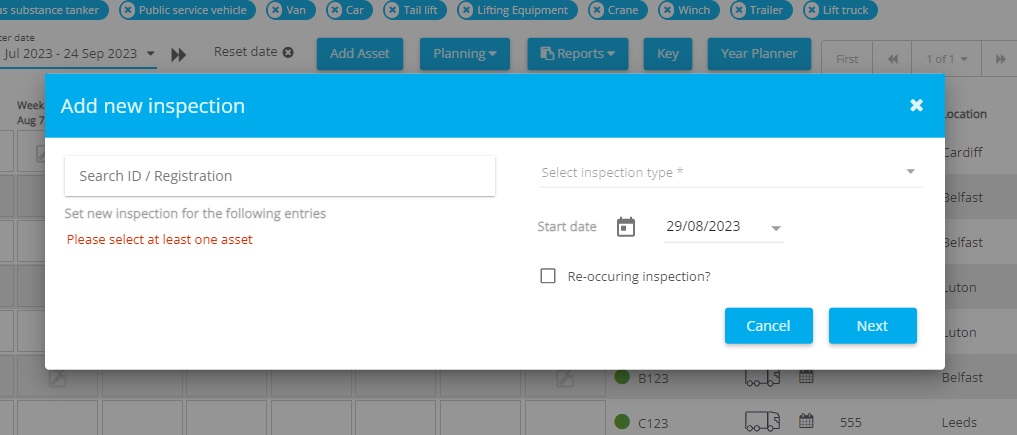
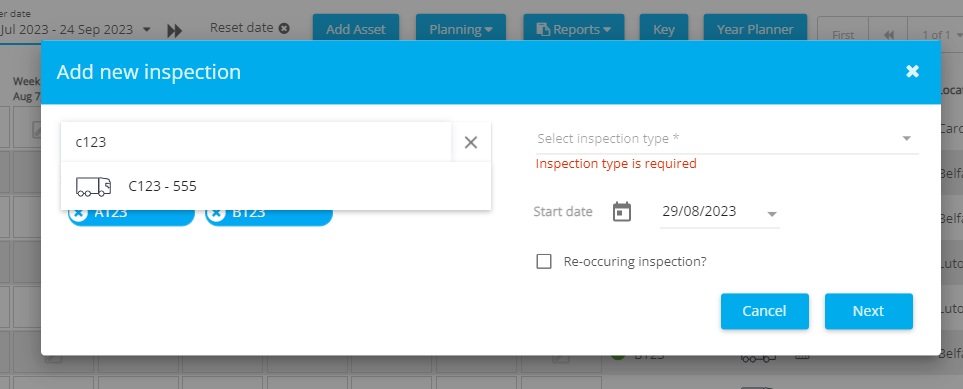
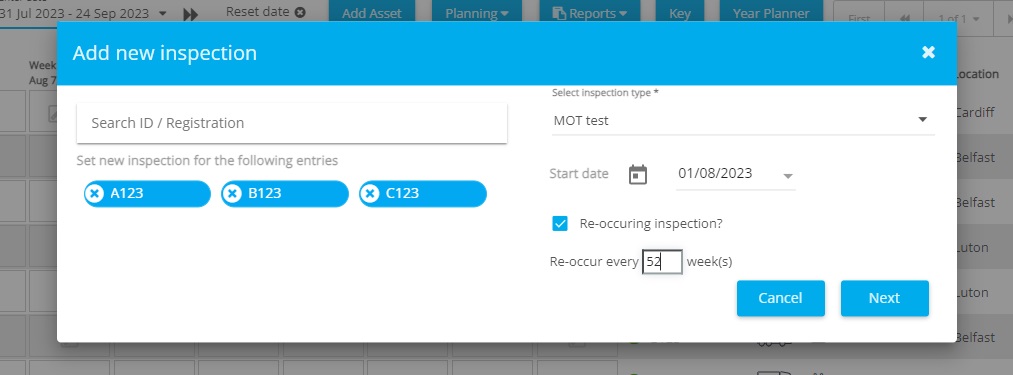
Add in the relevant registration number by typing it and selecting it from the list:
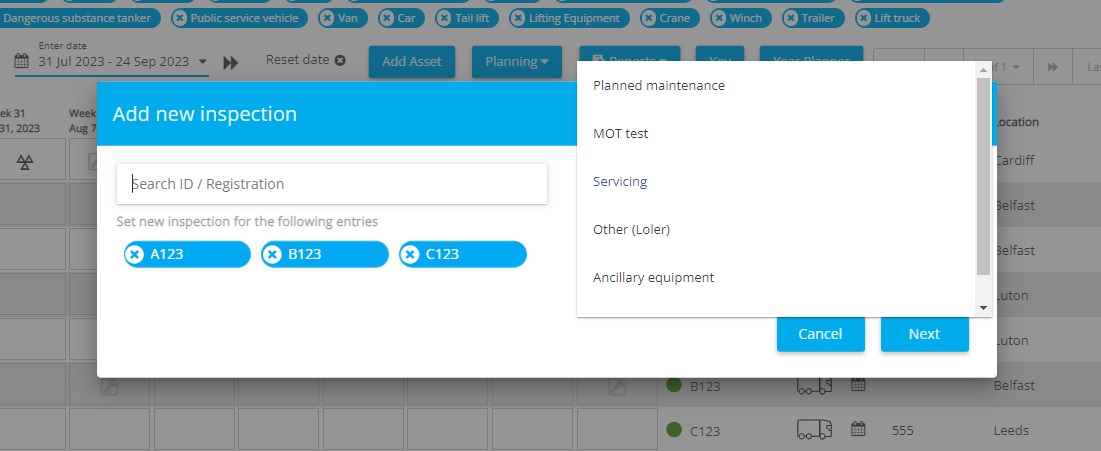
Then select the type of inspection you want to add:
Finally add in the start date and whether you want this action to reoccur at regular intervals:
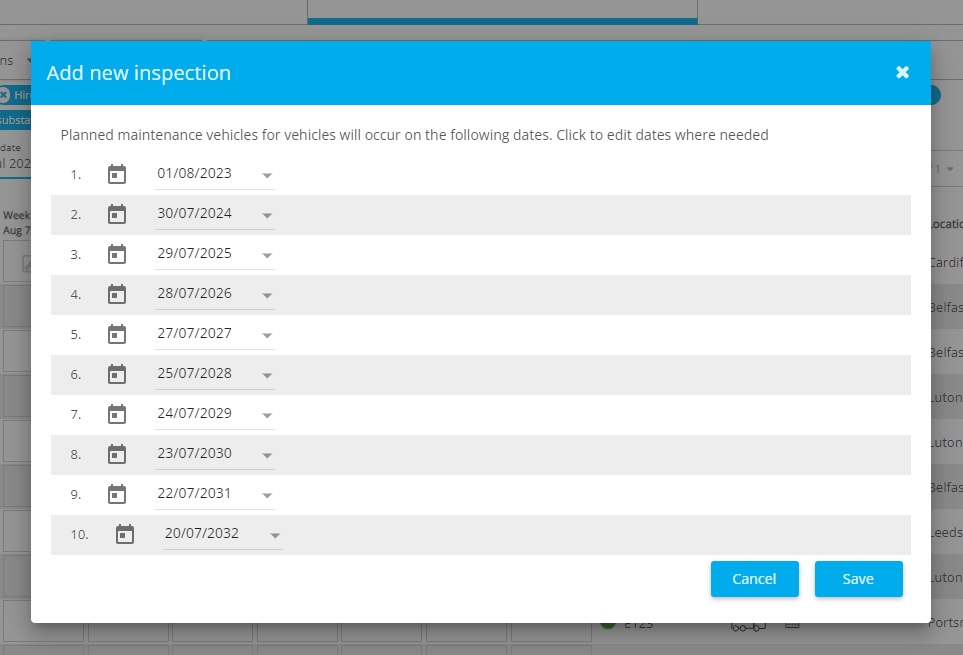
Click next to see the activities you have set up and then save:
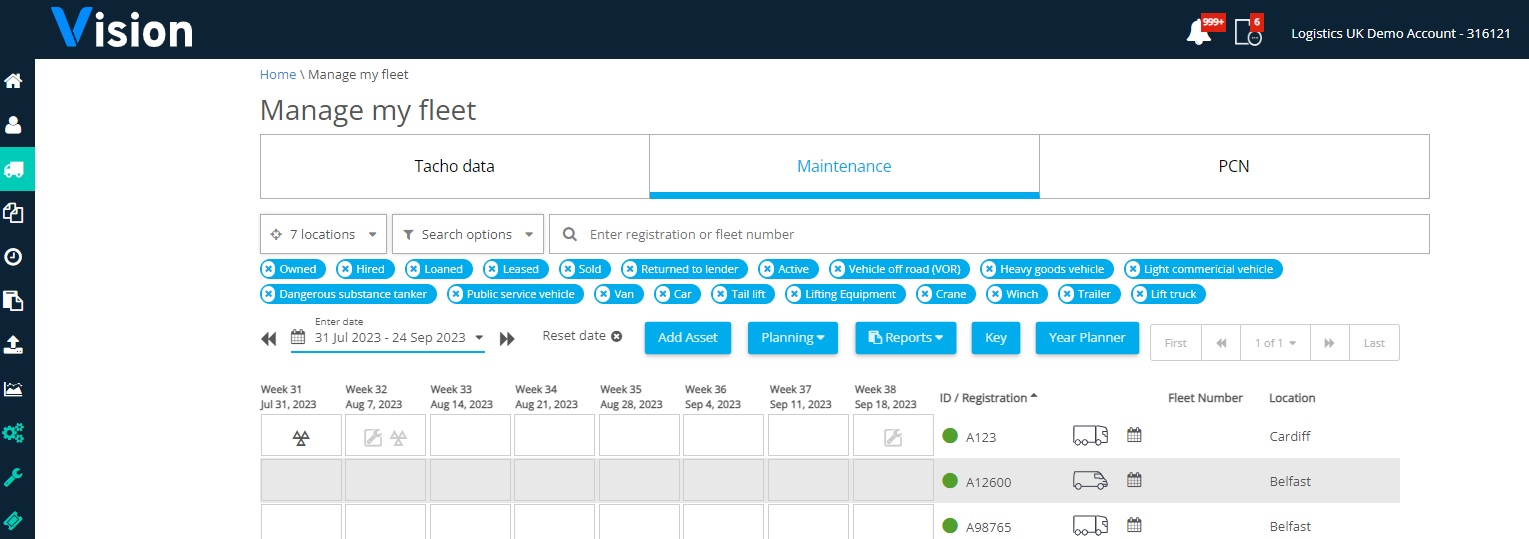
Each action selected will show as an icon in grey on the Manage my Fleet page:
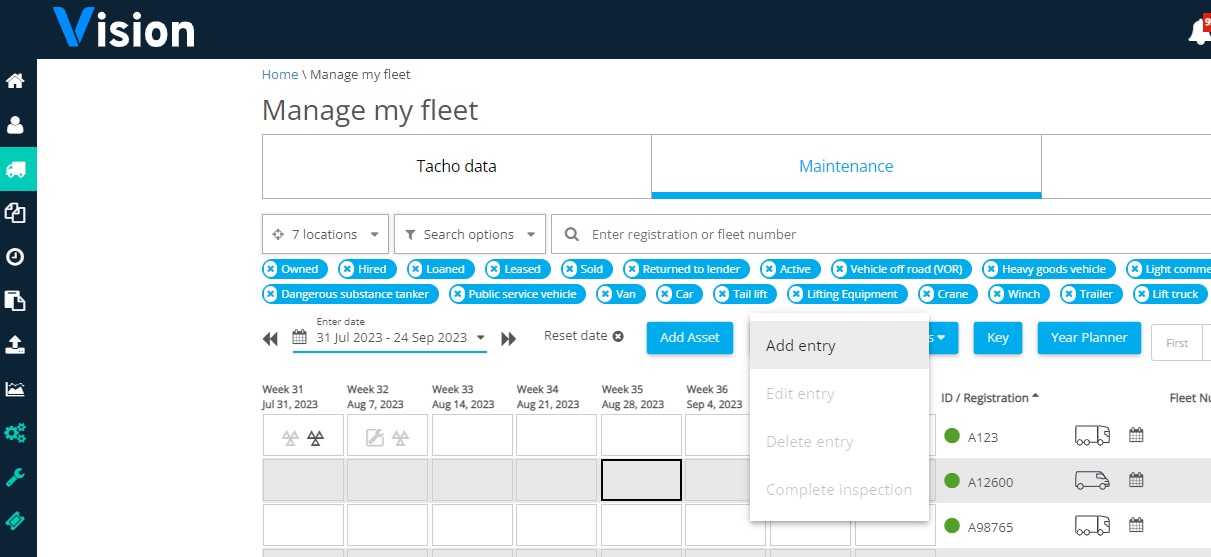
If you would like to assign activities to a specific vehicle follow the same process, but select a vehicle and specific week before selecting the “Planning” button:
Completing the inspection
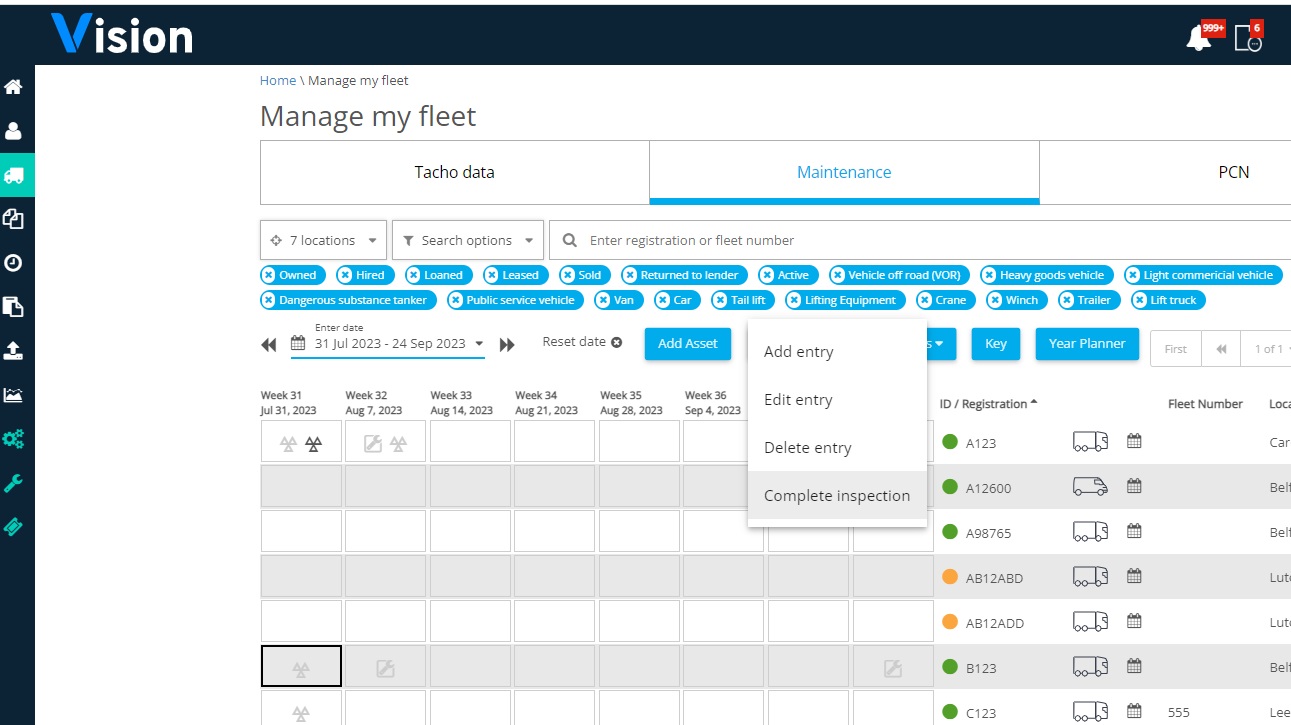
To complete the inspection, select the week in which it falls and pick “complete inspection”:
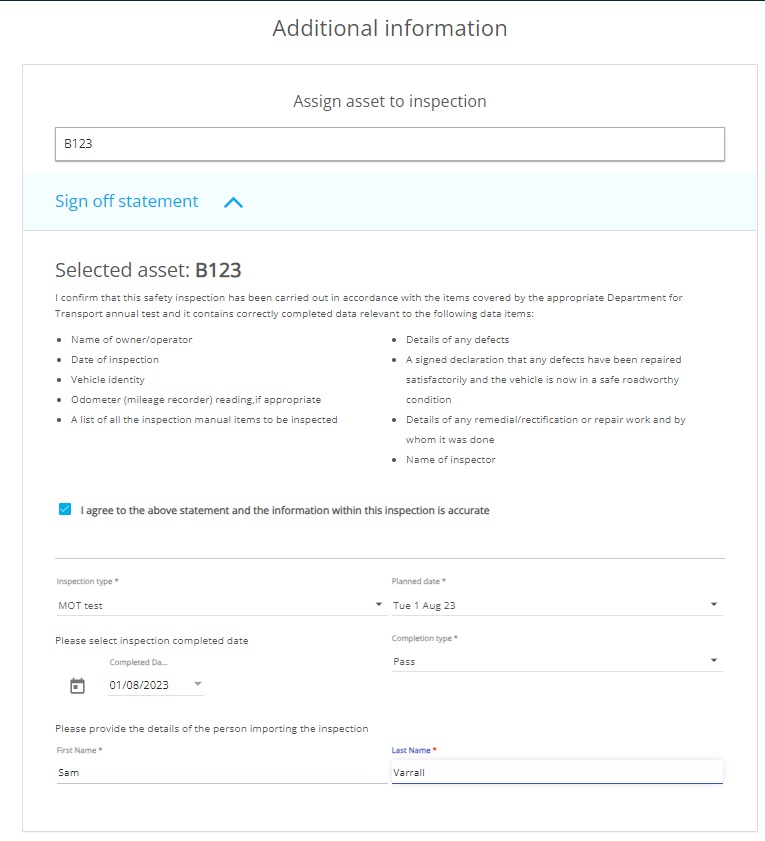
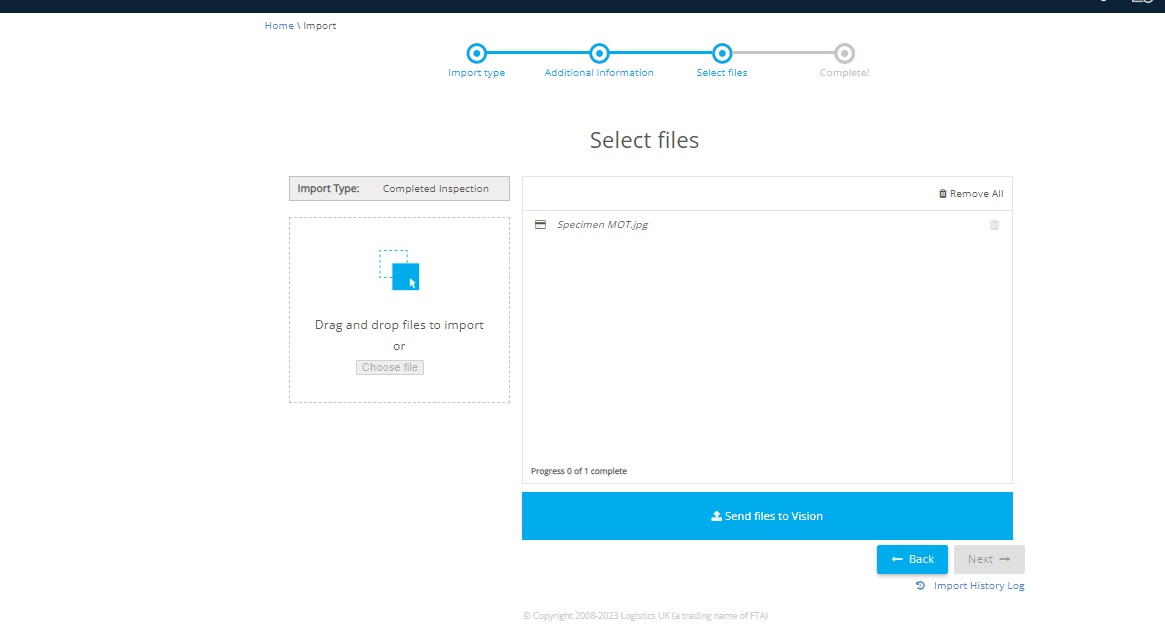
This will take you to the import page where you can complete the details of the inspection and upload any related documents:
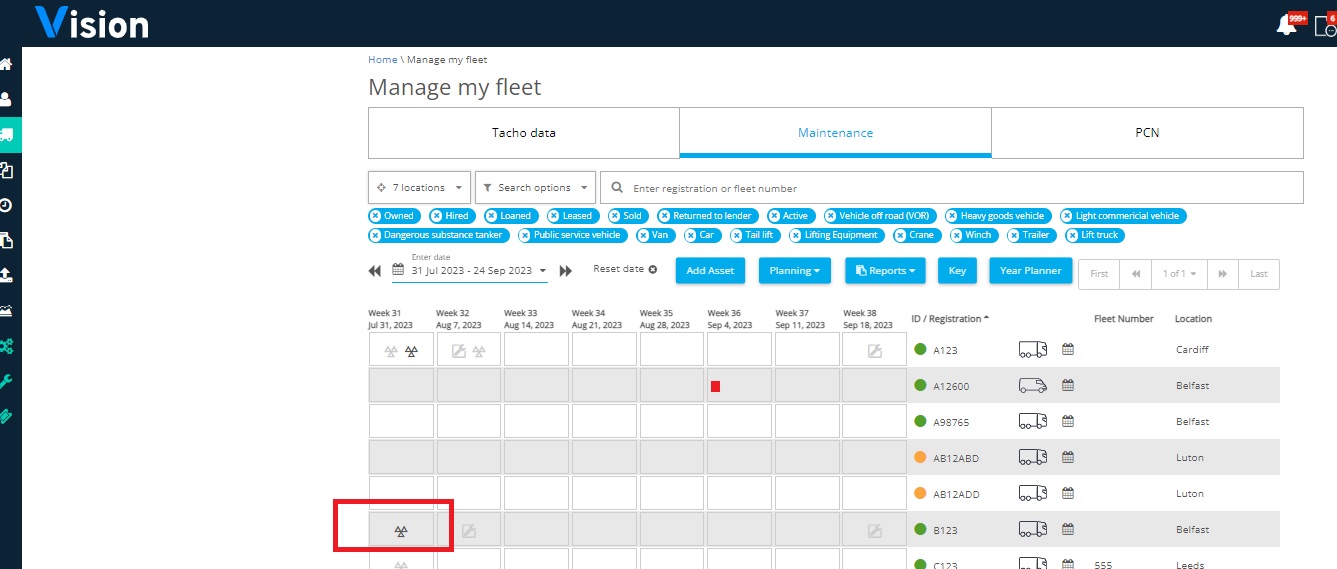
The icon for the inspection on Manage my Fleet will change from grey to black:
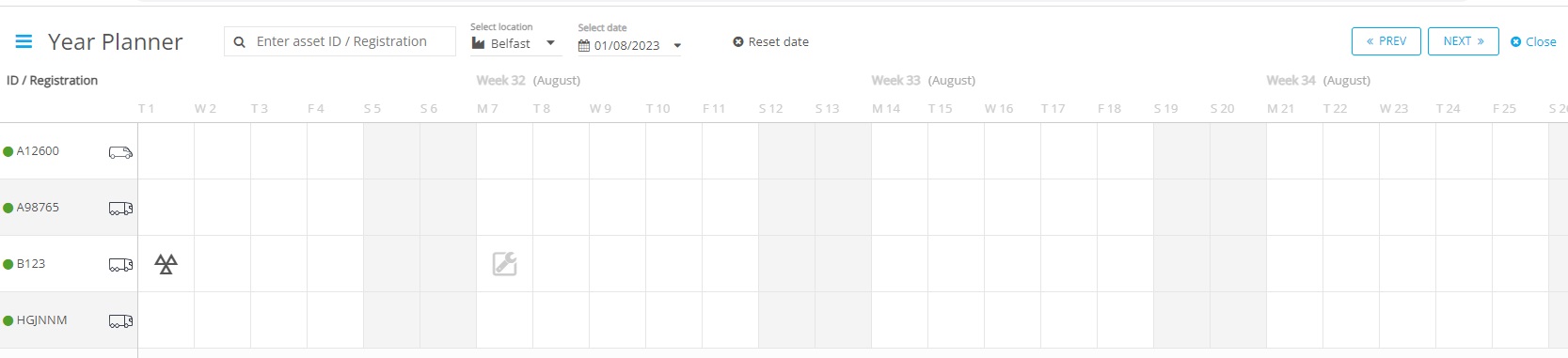
And will also show as done on the year planner:
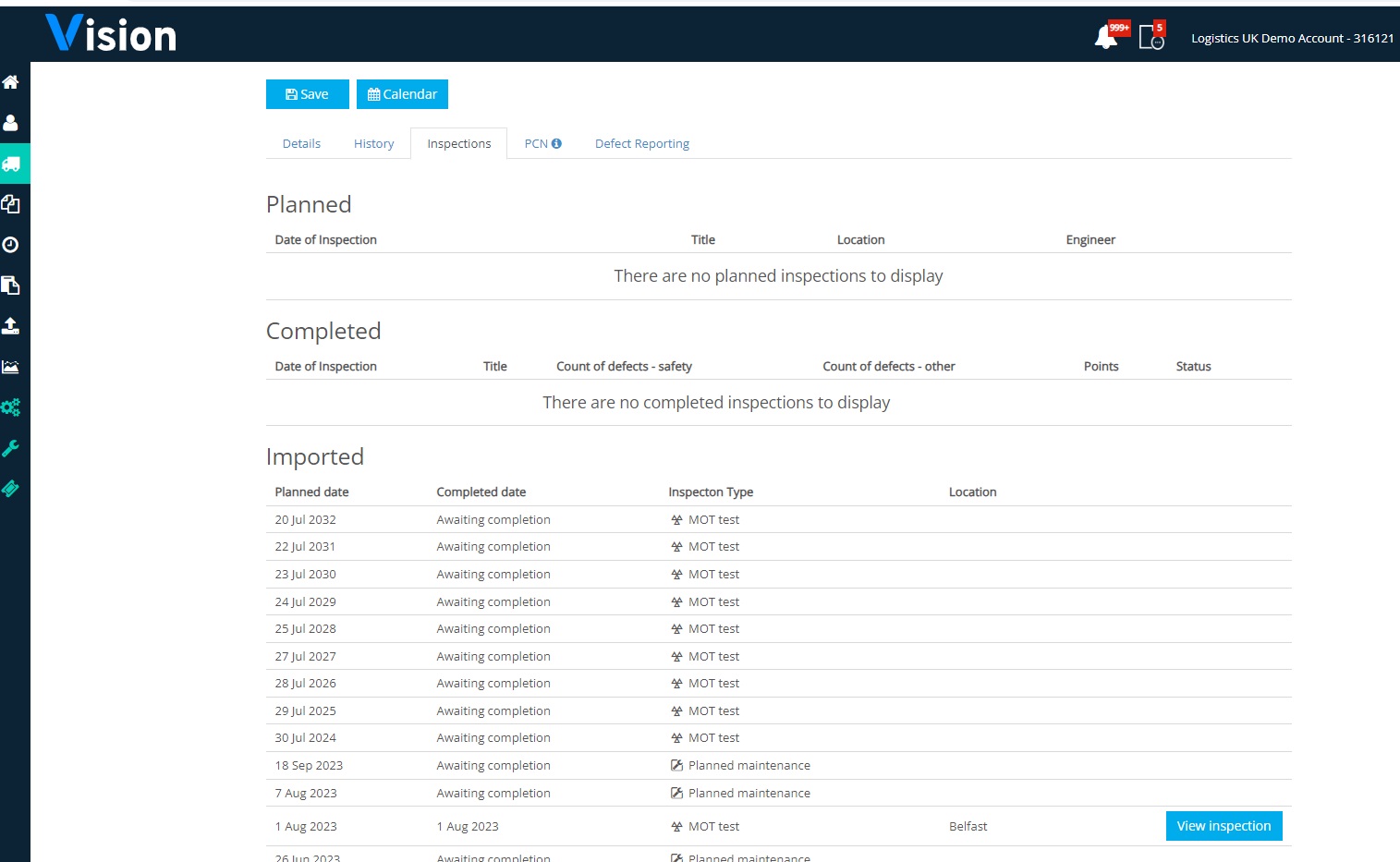
Full details of the inspections, due and completed as well as any uploaded documents can be found in the vehicle profile, under “Inspections”:
More Vision Help Articles Articles



Related Pages
Check out more news and media
Discover More

Become a Member
Our membership packages provide you with the tools to keep your operation safe, efficient and compliant.
Learn more

Press Releases
Latest updates, insights, and expert commentary shaping the future of logistics, transport, and supply chains across the UK.
Learn more

Services
Discover the full range of services from Logistics UK, designed to keep your operation safe, efficient, and compliant.
Services

Events
Discover upcoming Logistics UK events designed to bring industry leaders, policymakers, and businesses together.
Events
Stay Ahead. Stay Compliant. Stay Connected.
Join thousands of logistics professionals using Logistics UK to navigate industry change with confidence.
Join Us