













Vision Help Articles
Manual Entry Templates in Vision
We have updated our manual entry template feature. It allows users with the roles “Advanced Editor” and “Company Admin” to create templates that can be added to employees for things like maternity or paternity leave, training or office days giving you the benefit of being able to add activities away from a vehicle quickly and efficiently, as well as ensuring that your drivers have a complete record for drivers hours and working time analysis.
How to set up templates
Manual Entry Single Day
This template is used for employees that carry out activities away from their normal work.
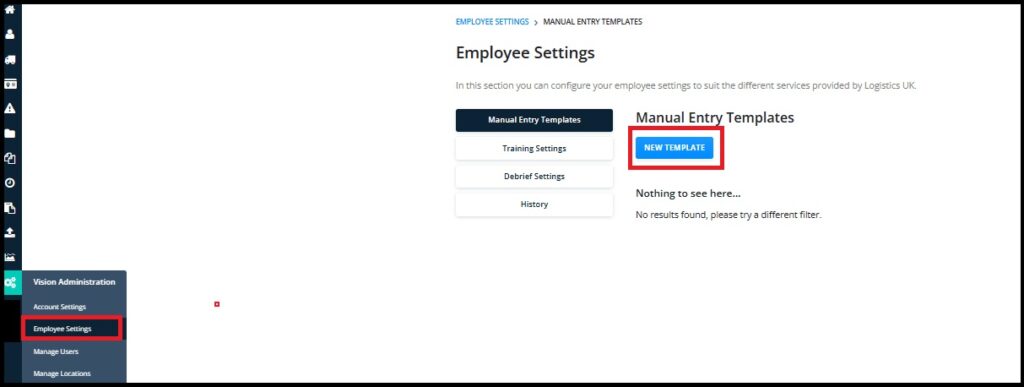
To create a “Single Day” template, as Company Admin go to “Employee Management” and select “New Template”:
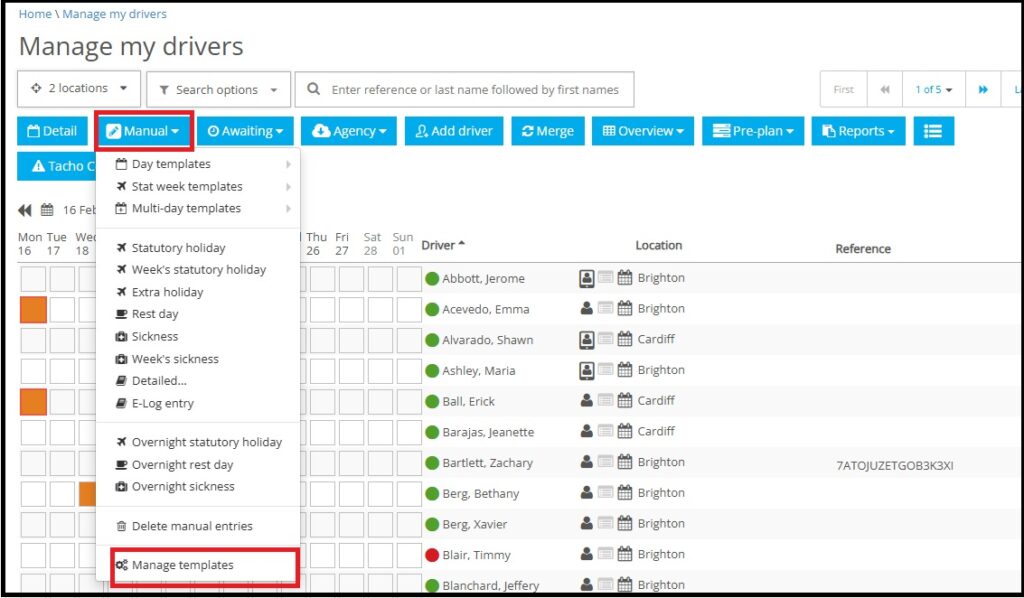
As Advanced editor go to the Manage my Drivers page and click the “Manual” button and then “Manage Templates”
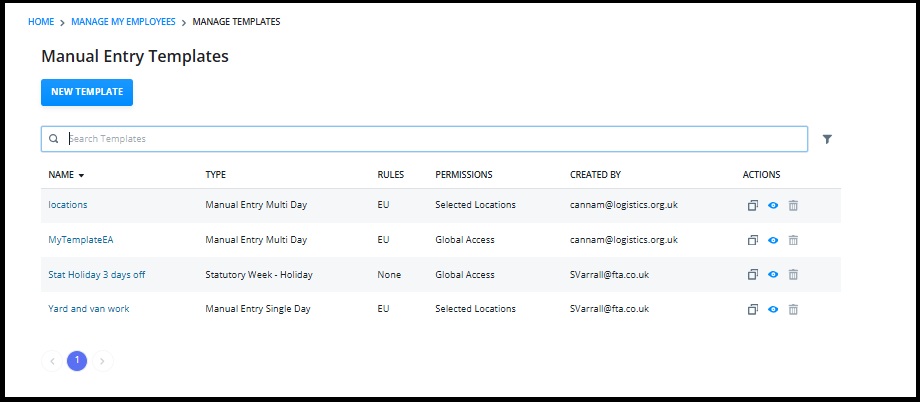
Select “New Template”
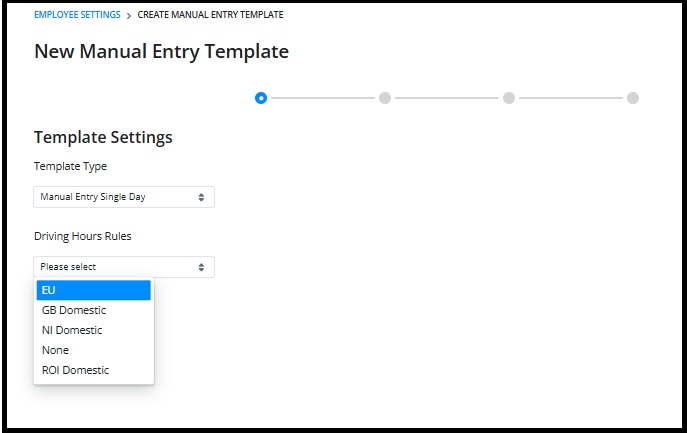
From the dropdown list select “Manual Entry Single Day”
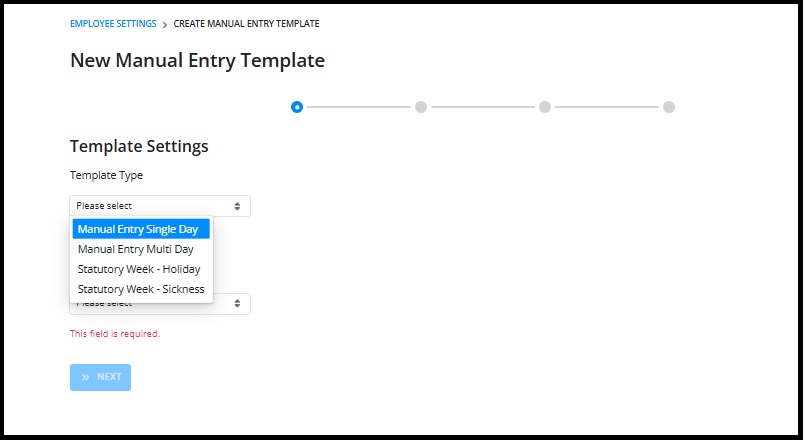
Select the appropriate rule set for the activity:
Click “next” to begin building your template:
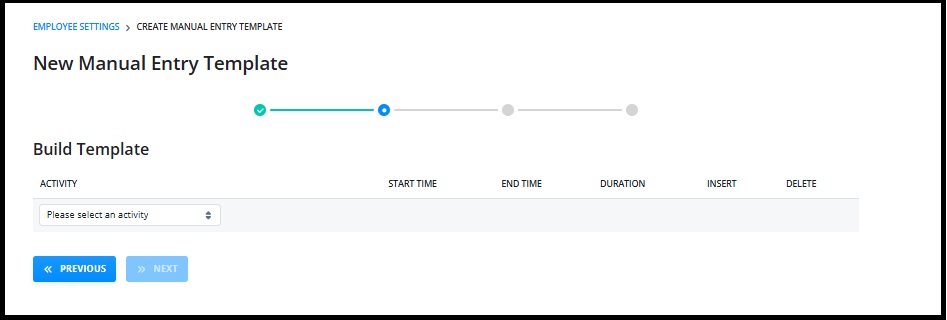
Add your activities, start time and either end time or duration until you have completed your template:
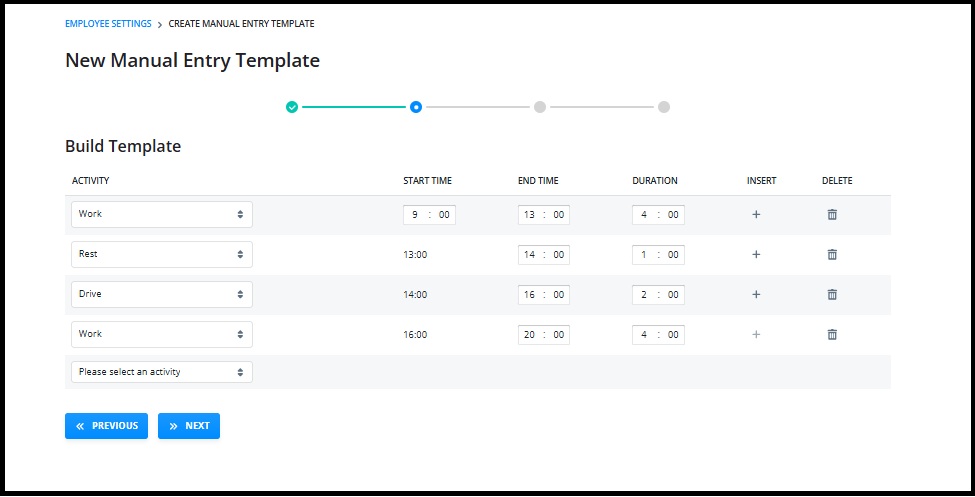
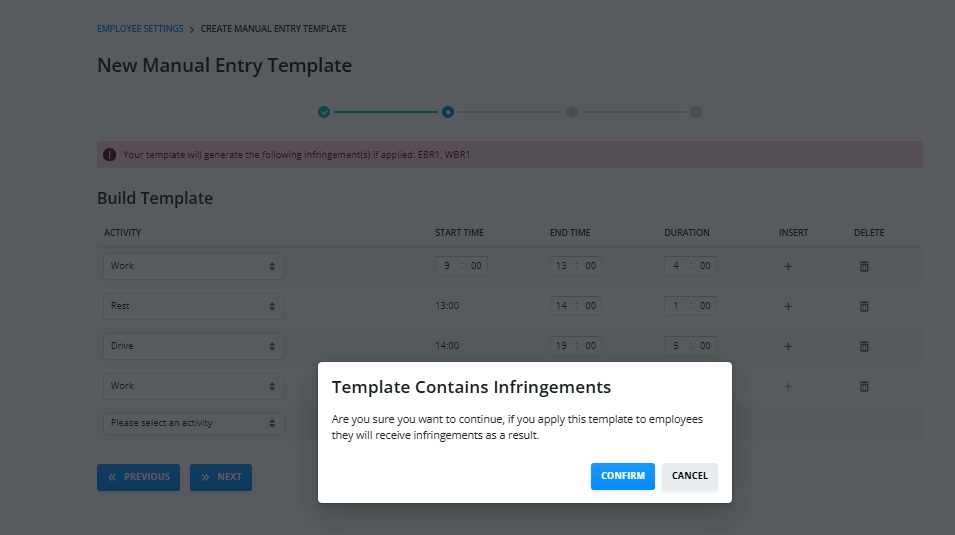
If the template, you have built results in infringements these will be shown:
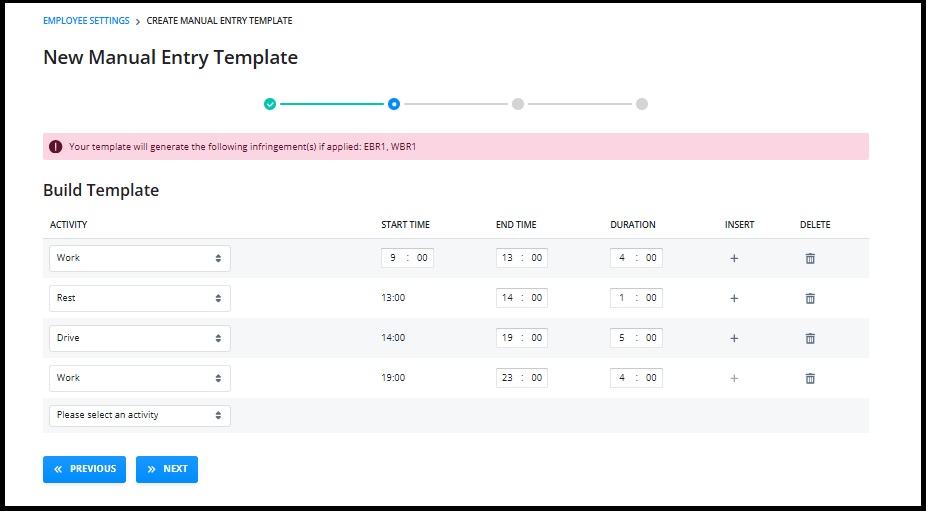
And you will be warned that your template includes infringements:
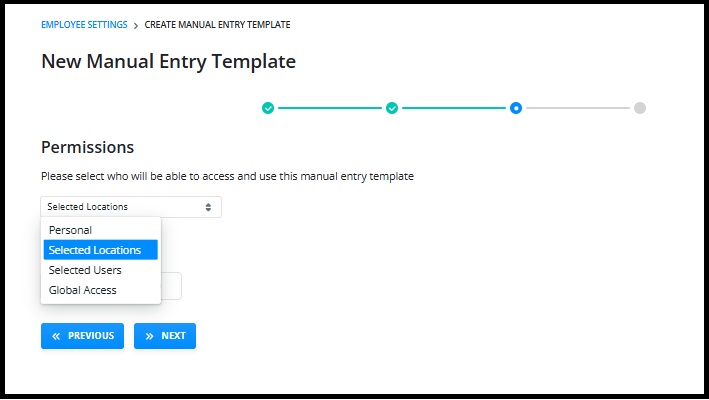
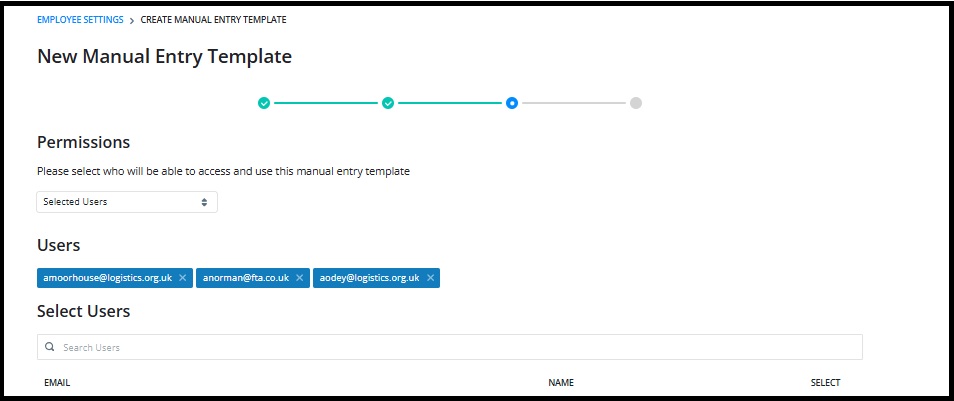
You can then set who sees your template. You can choose between
Personal– Only you will see your template
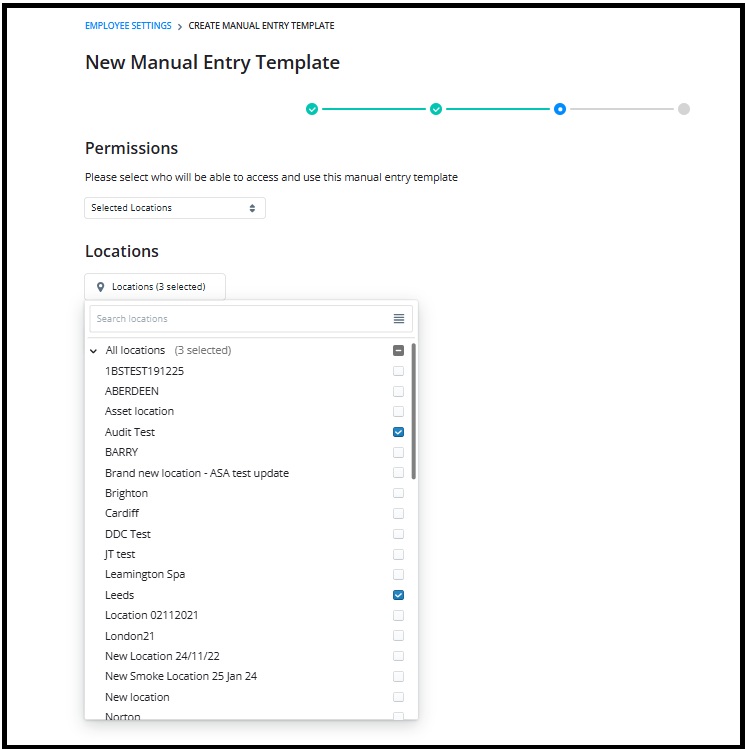
Selected Locations- the template will be available to all users in the locations you have selected
Selected Users- the template will be available to users that you select in the organisation
Global Access– make the template available to all users in the organisation. These can only be set up by those users with the “Company Admin” role.
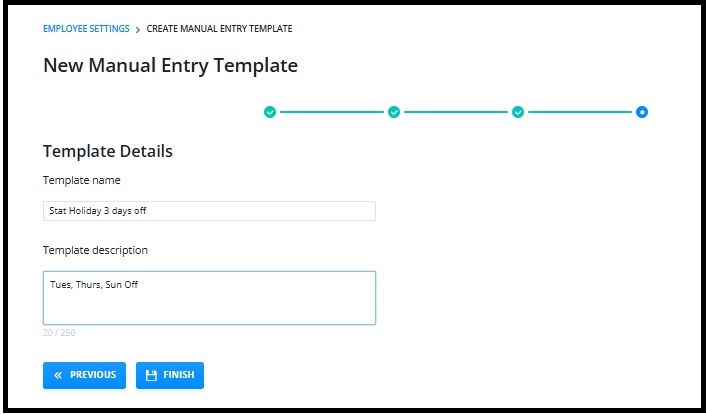
Select “Next” and then give your template a name and description:
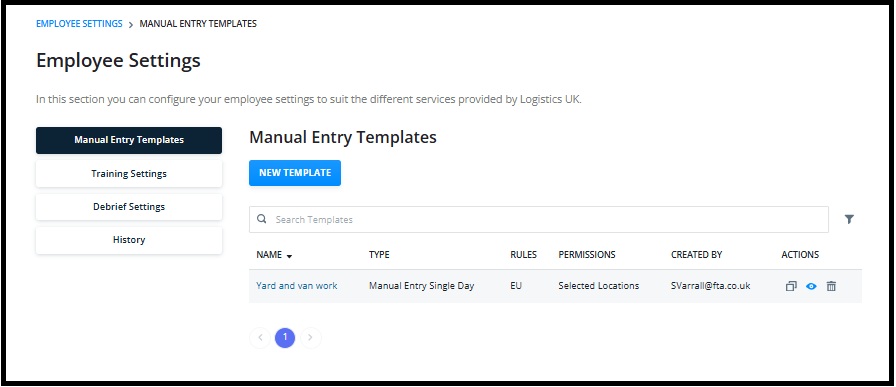
Then select “Finish”. Your Template will show on the listing page:
Manual Entry Multi Day Template
These templates might be used for longer term events away from normal activities. Each template can be a maximum of 8 weeks in length. Examples of multi day templates might be Maternity or Paternity leave, or long-term assignment to warehouse or office duties or training.
Select New Template and choose “Manual Entry Multi Day” and select the relevant rule set:
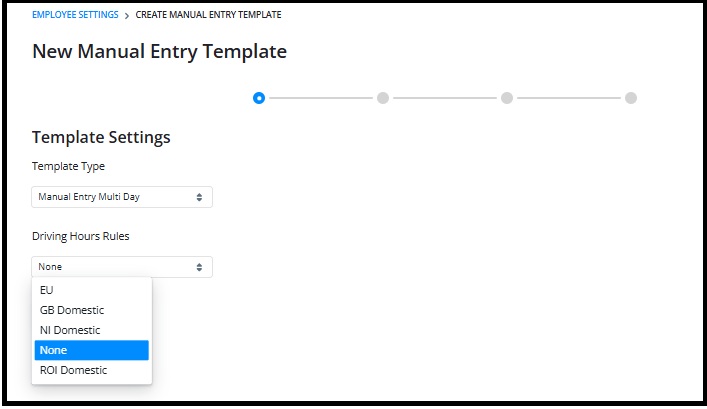
Select “Next”
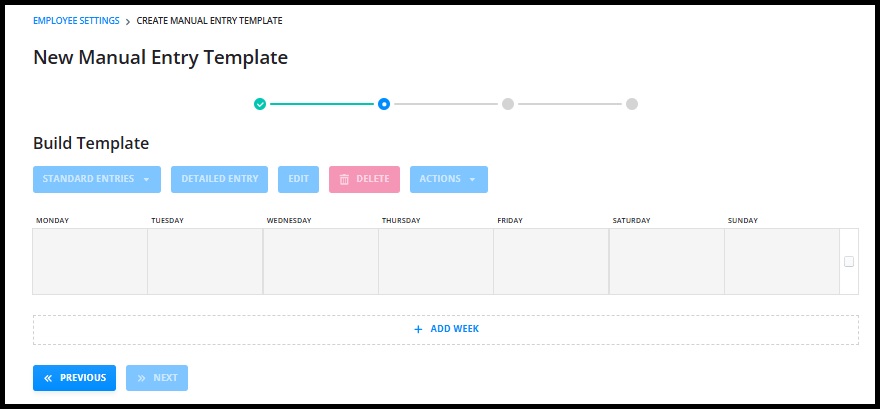
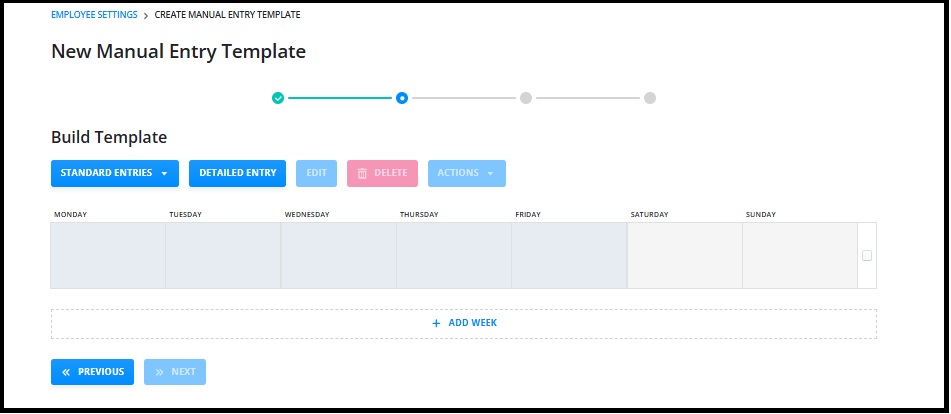
Now you can start to build your template. You can select a single day or multiple days by holding CTRL and clicking the days that you want to add activities to; the same activity will be added to the days highlighted:
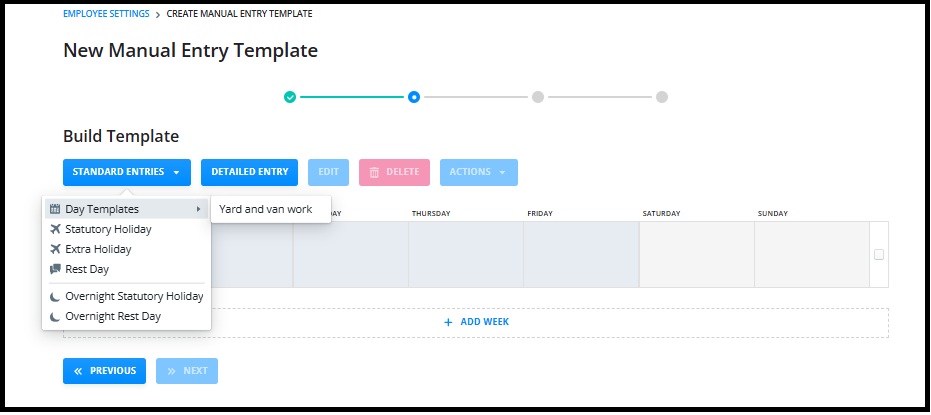
You can then choose “Standard Days” which includes Hols and sickness as well as any of your single day templates:
Or you can add your own detailed entry that will be applied to each of the days highlighted:
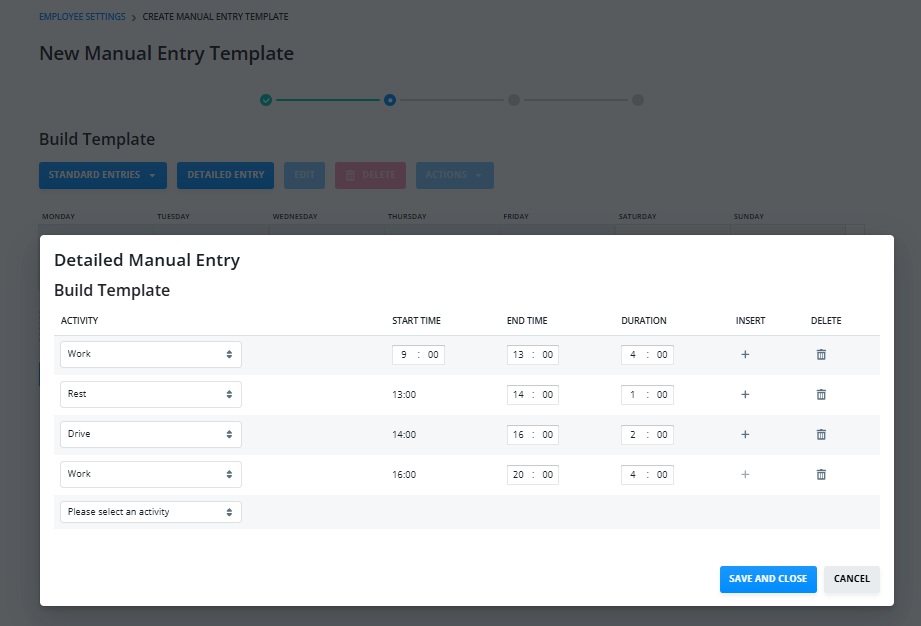
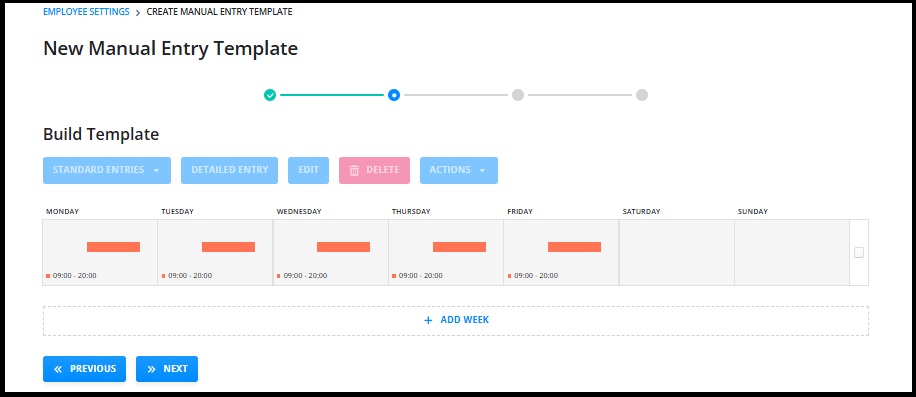
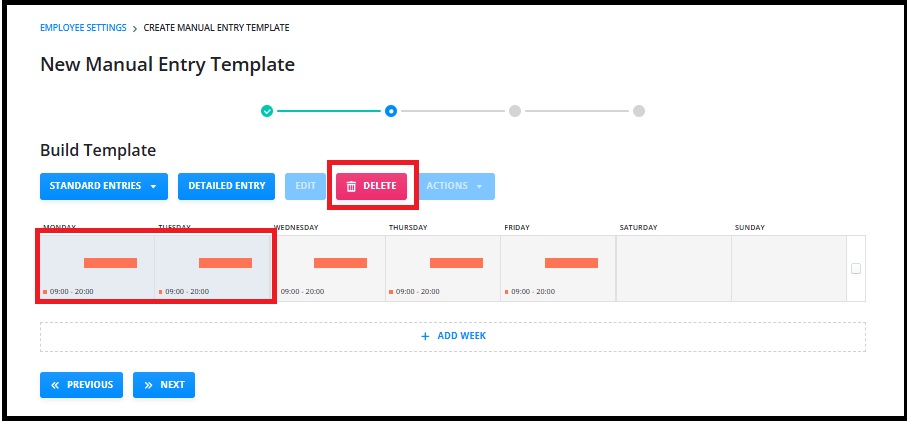
To delete a day, select the day or days and click “delete”
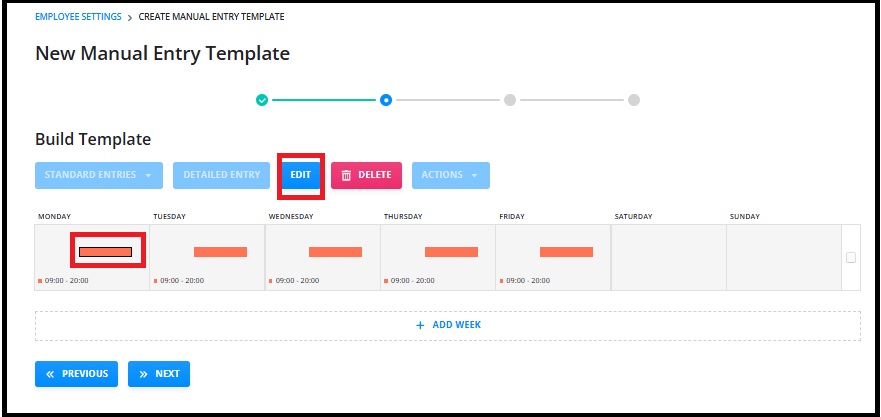
If you want to edit a day select the trace and click “Edit”
You can add a week by clicking the “+ Add Week” option:
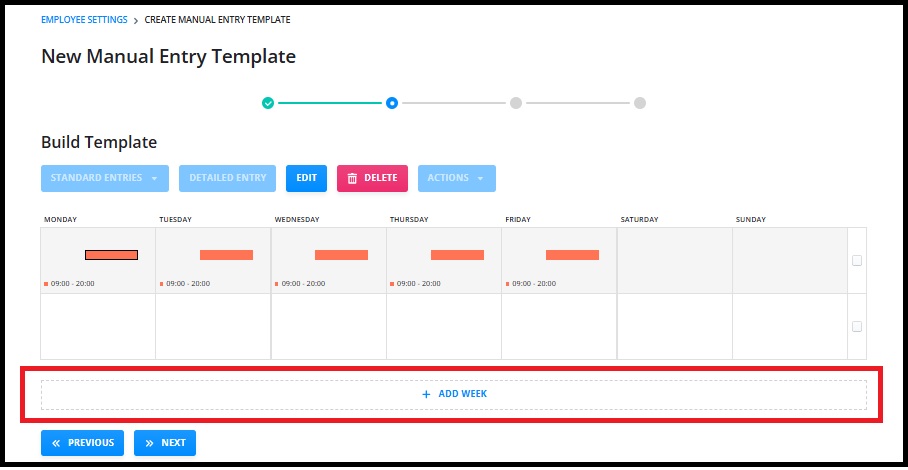
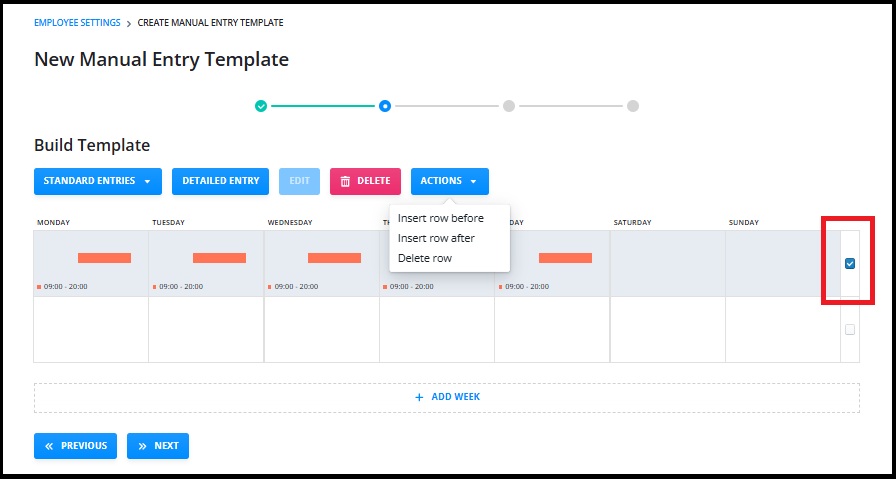
You can insert a row before or after a row or delete it by selecting the whole week and choosing the relevant option from the “Actions” tab:
Once you are happy with your template select “Next” and select the relevant permissions:
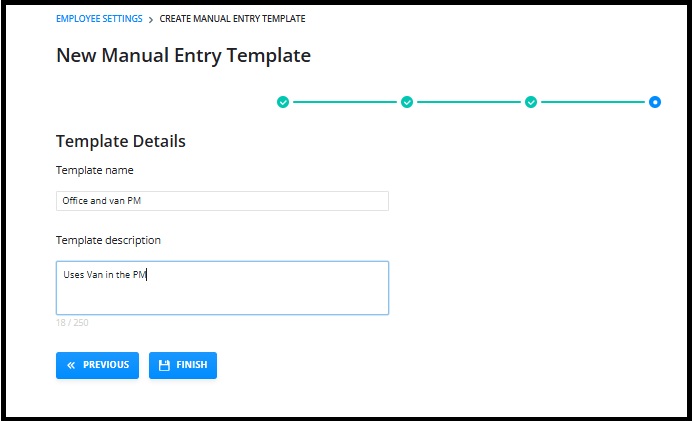
Name your template and select “Finish”
You Template will show in the template Listing page.
Statutory Holiday and Sickness Templates
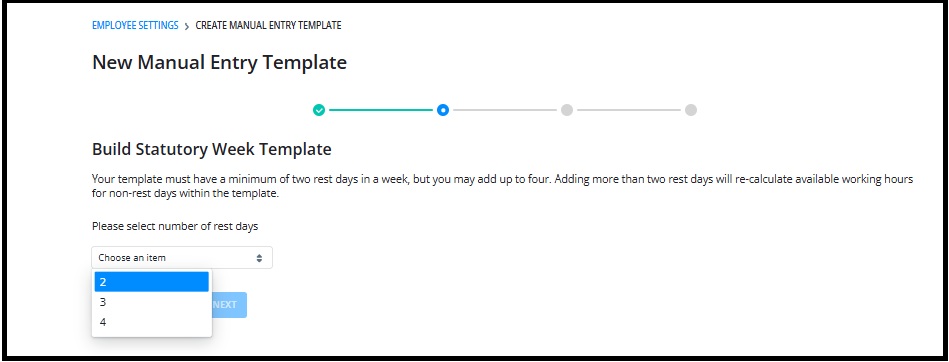
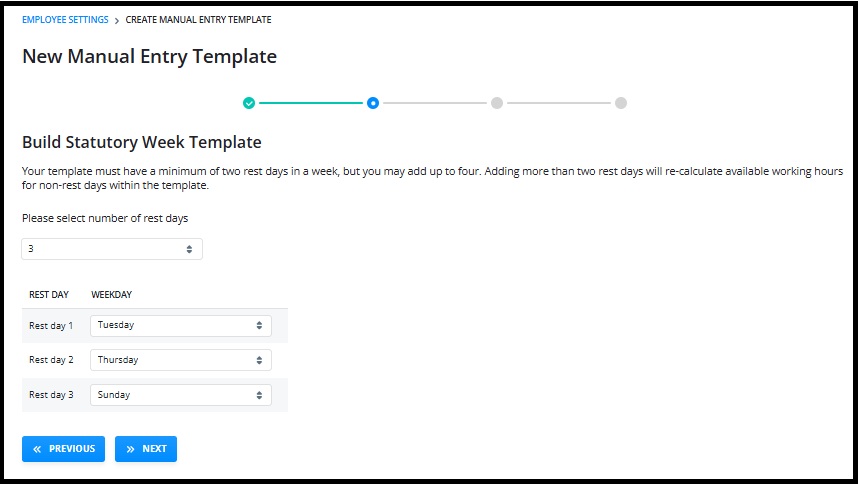
These templates will automatically add 48 hrs to a fixed week where statutory holiday or sickness is added. This template simply allows you to choose up to 4 days rest in the week. You can then select which days of the week the rest will fall on therefore giving you a holiday or sickness template that matches the employees normal shift and applies the correct 48hrs to the week for working time calculation.
To create the template, select either “Statutory Week- Holiday” or “Statutory Week- Sickness” and then select next:
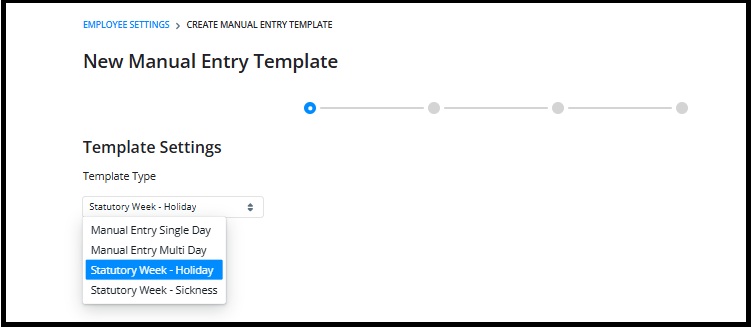
Select the number of days that are normally rest days in the shift pattern:
Select the day of the week that is normally rest in the shift pattern:
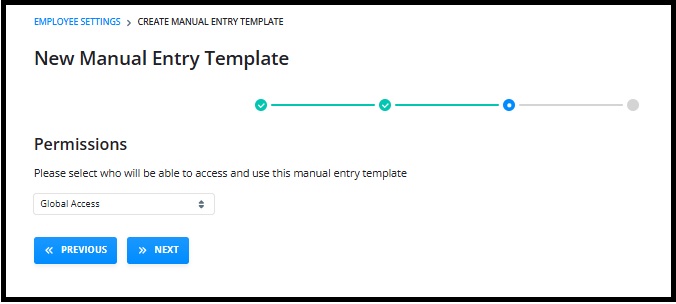
Finally, add the permissions level for the template:
Name the template:
Applying your templates
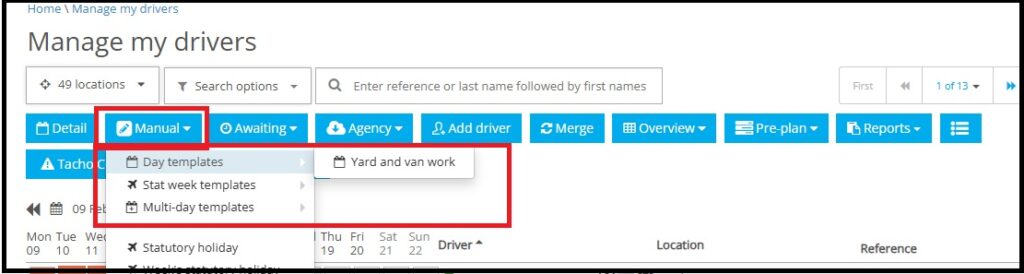
If you have created a template, or had one assigned to you, you will see them on the “Manual” tab on both the Manage My Drivers and Driver Calendar page:
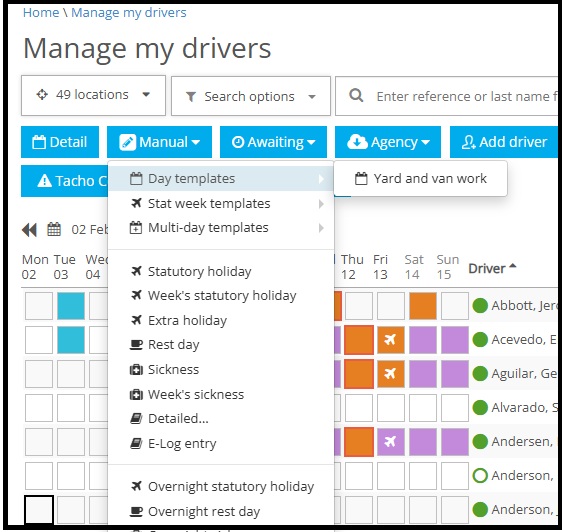
Select the day that you want the template to apply to or start, and then select the template:
Template list and Manage Templates
This area shows all the templates that are assigned to you:
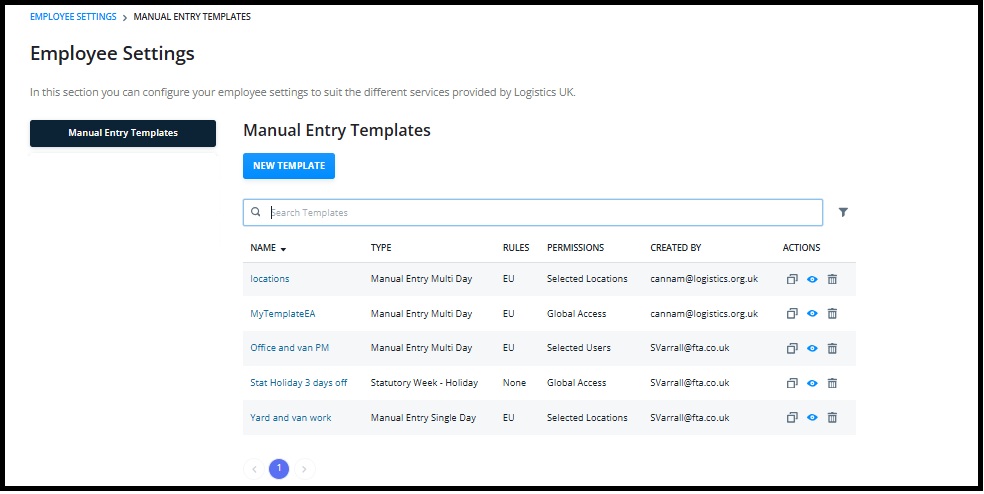
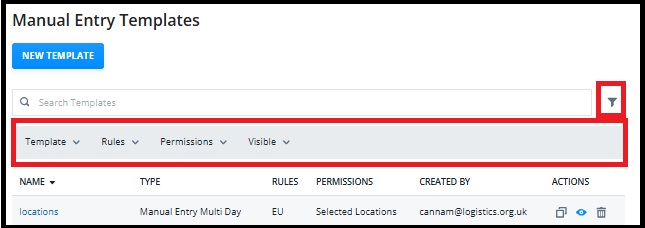
You can use the search bar to find specific templates or templates created by a specific user, or alternatively select the filter options to view types of templates:
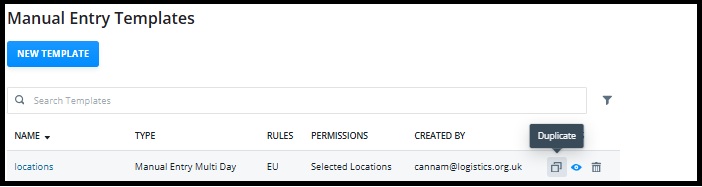
You can duplicate a template which makes it simple to update edit and create a new template without starting from scratch:
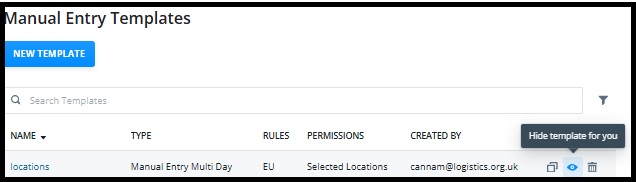
If you don’t use a template, you can hide it from the list shown on the “Manage my Driver” and “Driver Calendar” pages:
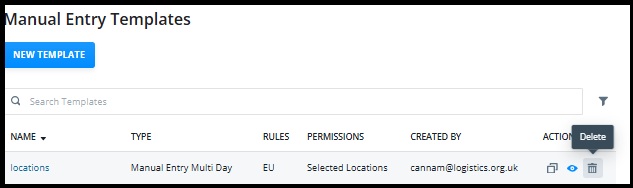
If you have the correct permissions, you can delete a template. If you have created the template just for personal use, you will be able to delete it. If a template is used by multiple users only “Company admin” will be able to delete it
More Vision Help Articles Articles



Related Pages
Check out more news and media
Discover More

Become a Member
Our membership packages provide you with the tools to keep your operation safe, efficient and compliant.
Learn more

Press Releases
Latest updates, insights, and expert commentary shaping the future of logistics, transport, and supply chains across the UK.
Learn more

Services
Discover the full range of services from Logistics UK, designed to keep your operation safe, efficient, and compliant.
Services

Events
Discover upcoming Logistics UK events designed to bring industry leaders, policymakers, and businesses together.
Events
Stay Ahead. Stay Compliant. Stay Connected.
Join thousands of logistics professionals using Logistics UK to navigate industry change with confidence.
Join Us