













Vision Help Articles
Multi Factor Authentication in Vision
Overview
Multi-Factor Authentication (MFA) is an extra security step when you sign in. Along with your password, it asks you to confirm it’s really you—usually with a prompt on your phone or a code. This helps keep your account safe, even if someone else learns your password.
- Stops most sign-ins by someone who only has your password.
- Helps protect your data if your password is stolen in a scam or data leak.
- Gives you a chance to spot suspicious activity (for example, a sign-in prompt you weren’t expecting).
- Reduces the risk of account lockouts and recovery work caused by compromised accounts.
-
Helps your organisation meet security requirements for protecting information.
Best practice
- Approve MFA prompts only when you are actively signing in.
- If you get an MFA prompt you didn’t start, choose Deny (or do not approve it) and contact your IT/helpdesk—someone may be trying to access your account.
- Keep your phone/device protected (PIN/biometric) because it may be used to confirm sign-ins.
- If you get a new phone or number, update your MFA method as soon as possible so you don’t get locked out.
Vision Multi Factor:
We are implementing the ability for accounts to optionally setup MFA, this will become mandatory by January 2027
This setting is only available to users with Company Admin and Primary contacts only to enable.
Configuring MFA
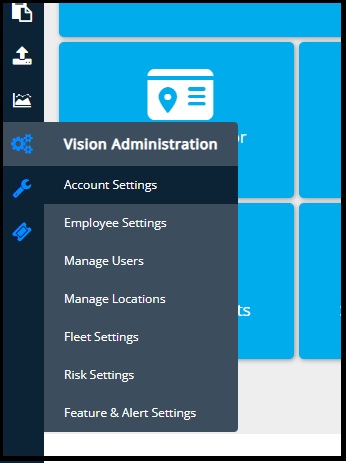
Go to Multi factor authentication, under account settings
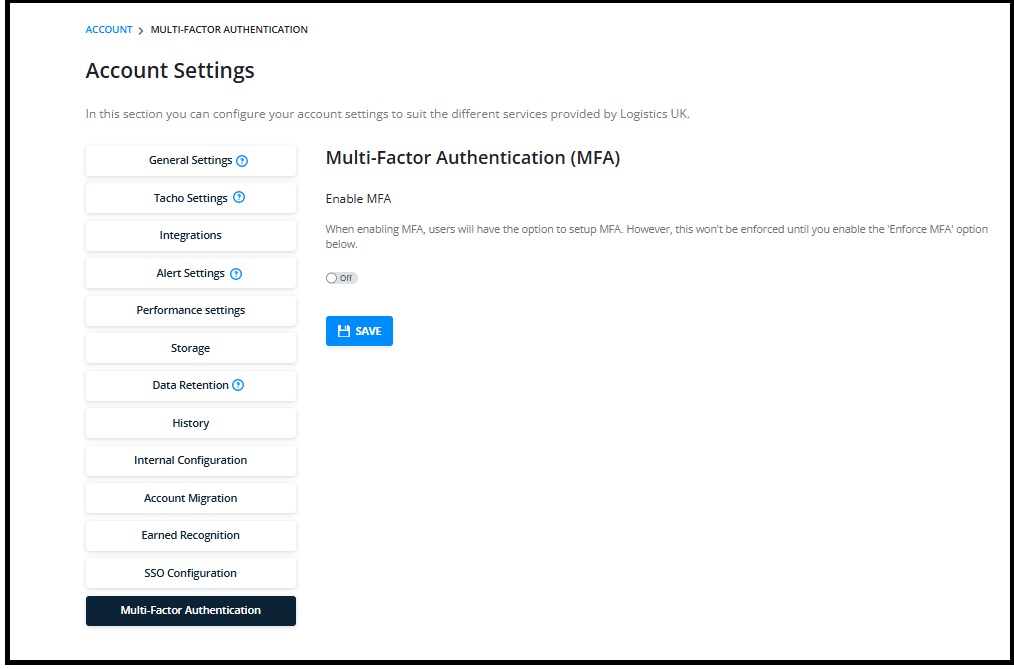
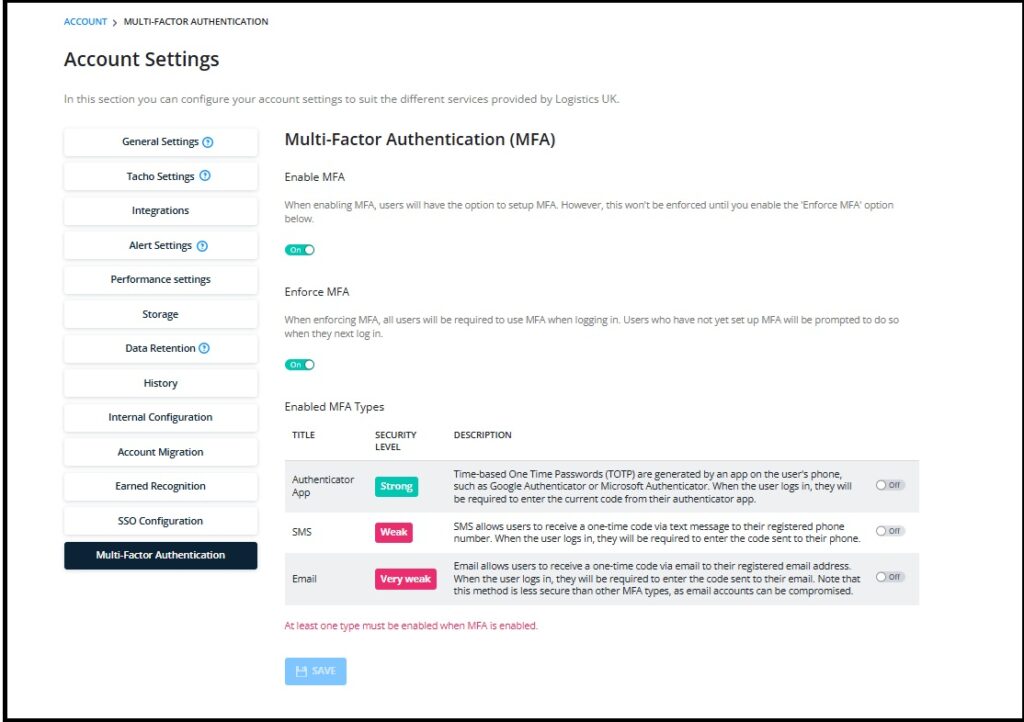
Switch MFA on (this will not enforce MFA until you have selected at least one method in Enabled MFA types)
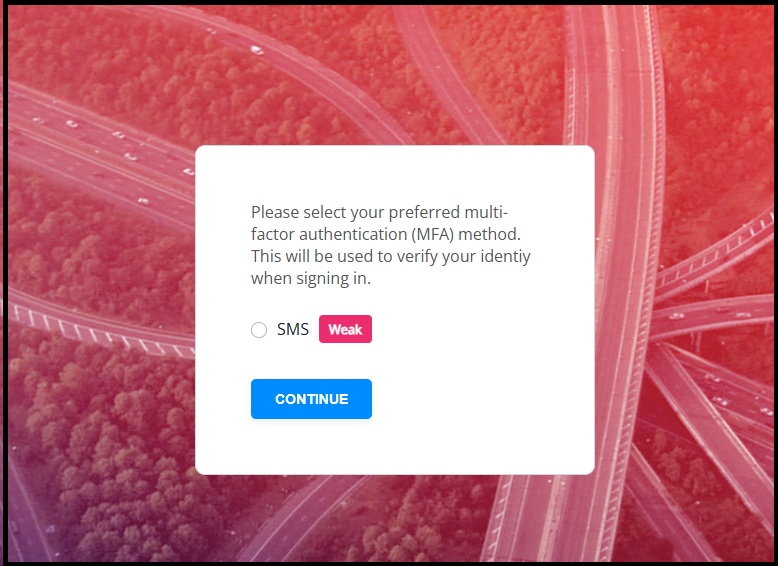
When the driver next logs in they will be asked to add details to carry out Multi Factor Authentication:
More Vision Help Articles Articles



Related Pages
Check out more news and media
Discover More

Become a Member
Our membership packages provide you with the tools to keep your operation safe, efficient and compliant.
Learn more

Press Releases
Latest updates, insights, and expert commentary shaping the future of logistics, transport, and supply chains across the UK.
Learn more

Services
Discover the full range of services from Logistics UK, designed to keep your operation safe, efficient, and compliant.
Services

Events
Discover upcoming Logistics UK events designed to bring industry leaders, policymakers, and businesses together.
Events
Stay Ahead. Stay Compliant. Stay Connected.
Join thousands of logistics professionals using Logistics UK to navigate industry change with confidence.
Join Us