













Vision Help Articles
Import
You can access the import page by selecting the Import icon from the menu on any page in Vision.
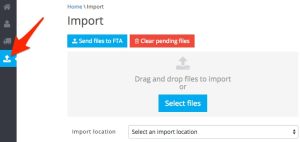
Before selecting files to upload you must first select the upload location. This will be your Home location. You will only need to select this on first use.
From here you can select files that are either stored on your PC or on a download device.
Click on Select files and find the area in which your files are held. Once you have selected the files they will be displayed on the right hand side of the screen.
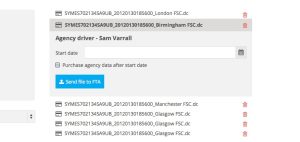
Check all the files are those you wish to upload.
If any need to be removed either click on the recycle bin icon at the end of each file name or click on Clear all pending files to remove all the files.
Uploading a new driver file
When you upload a driver card file for the first time a pop up will ask for:
- Driver type (core or agency)
- Start date of driver
- And if you set the driver as an agency driver the pop up will ask if you would like to purchase all data after the start date.
Once the data has been entered click on Send files to FTA.
More Vision Help Articles Articles



Related Pages
Check out more news and media
Discover More

Become a Member
Our membership packages provide you with the tools to keep your operation safe, efficient and compliant.
Learn more

Press Releases
Latest updates, insights, and expert commentary shaping the future of logistics, transport, and supply chains across the UK.
Learn more

Services
Discover the full range of services from Logistics UK, designed to keep your operation safe, efficient, and compliant.
Services

Events
Discover upcoming Logistics UK events designed to bring industry leaders, policymakers, and businesses together.
Events
Stay Ahead. Stay Compliant. Stay Connected.
Join thousands of logistics professionals using Logistics UK to navigate industry change with confidence.
Join Us