













Vision Help Articles
Vision- Fleet Settings & Sub Types
Vision now has a fleet set up feature that allows those with the Company Admin or Primary contact to:
- Remove certain asset types from displaying in the vehicle profile
- Adding certain sub types to assets for more accurate reporting
Using Fleet Settings
Go to Vision Administration and select Fleet Settings:
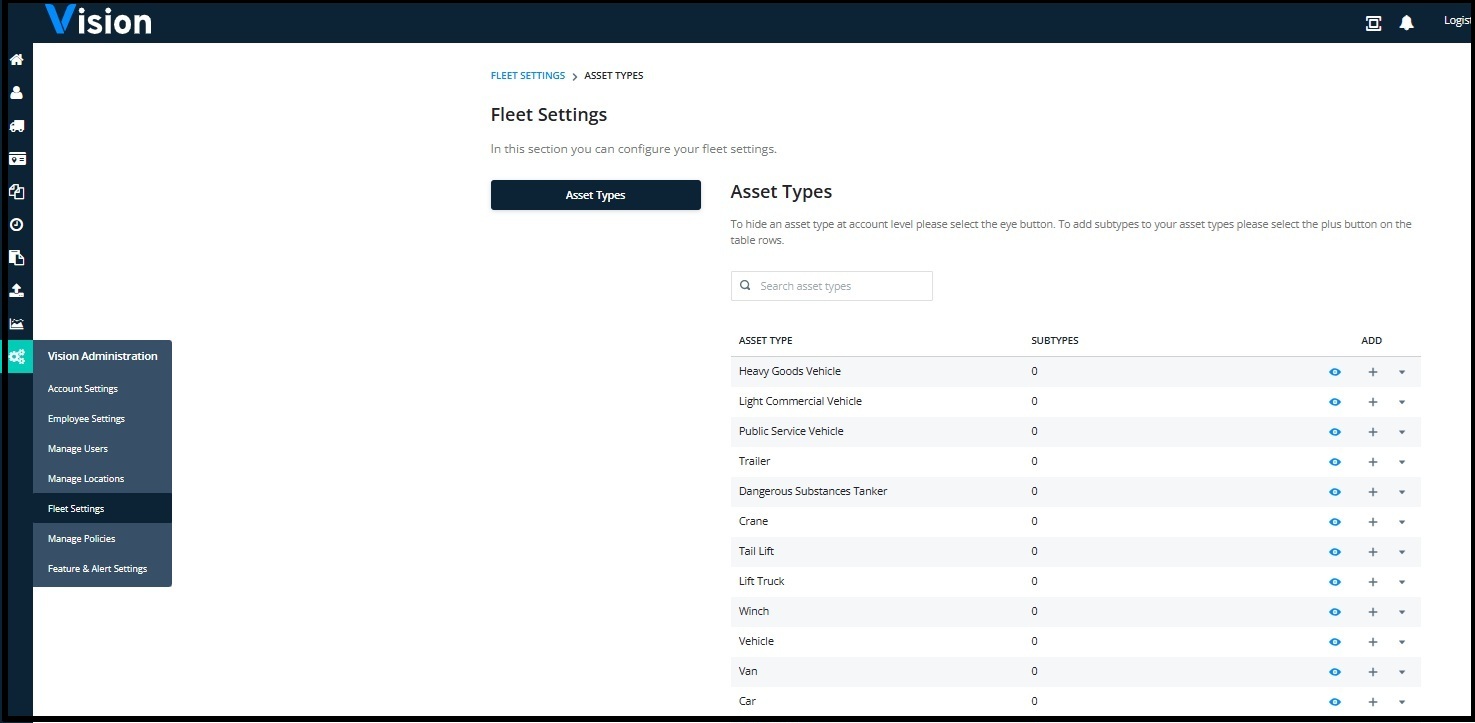
If you would like to hide an asset from the asset profile in Vision, to stop your teams from selecting it, click the eye icon to hide:
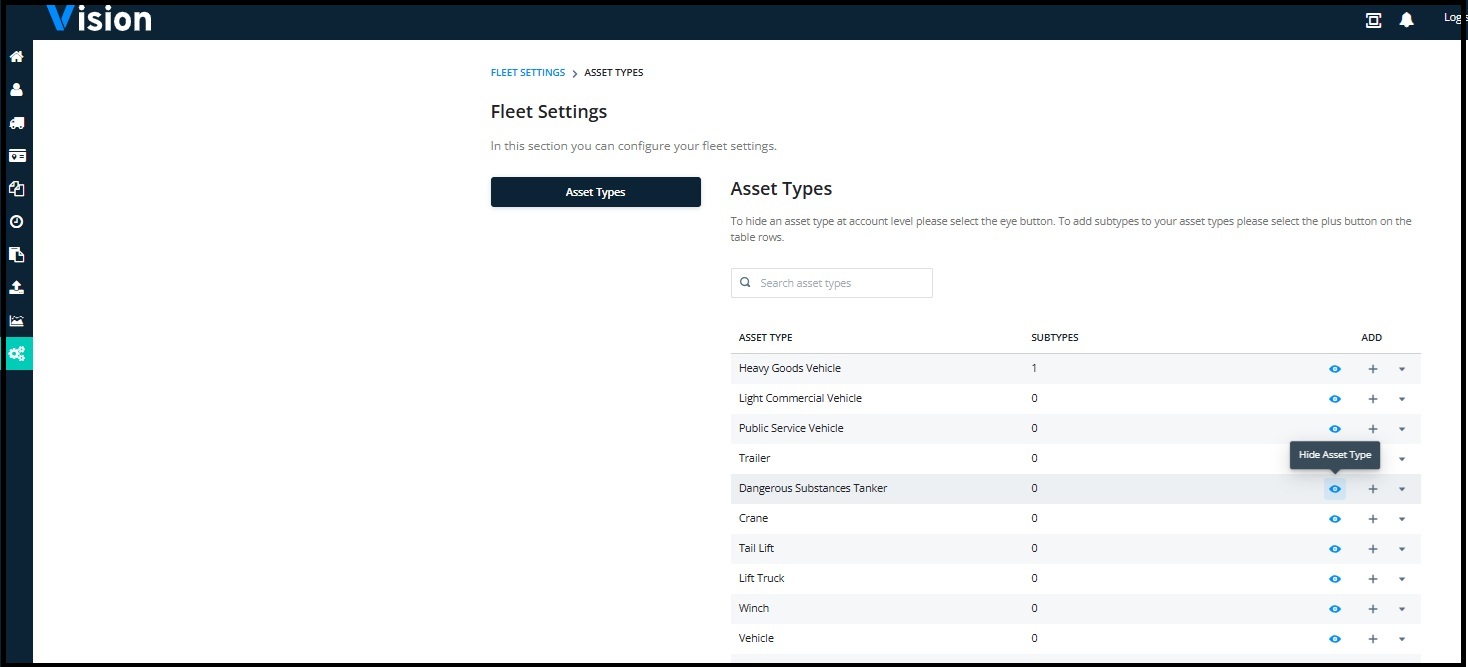
Where a vehicle type has already been applied to an asset, you will not be able to hide it from the list.
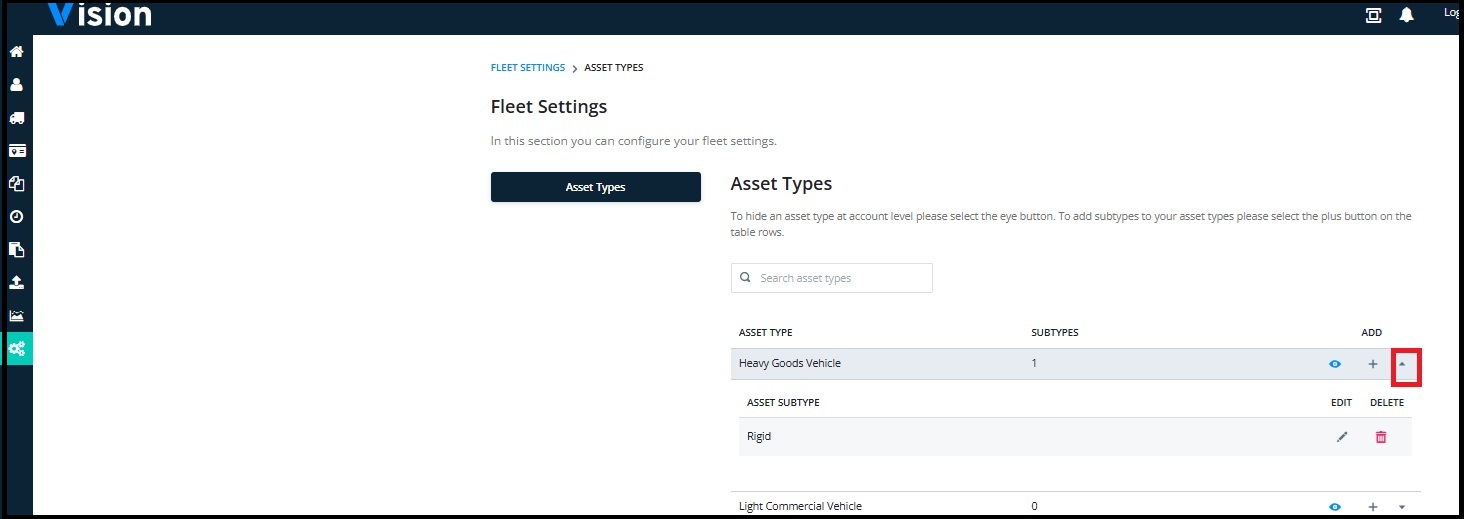
To add a subtype to an asset, click the + button and type in the subtype required:
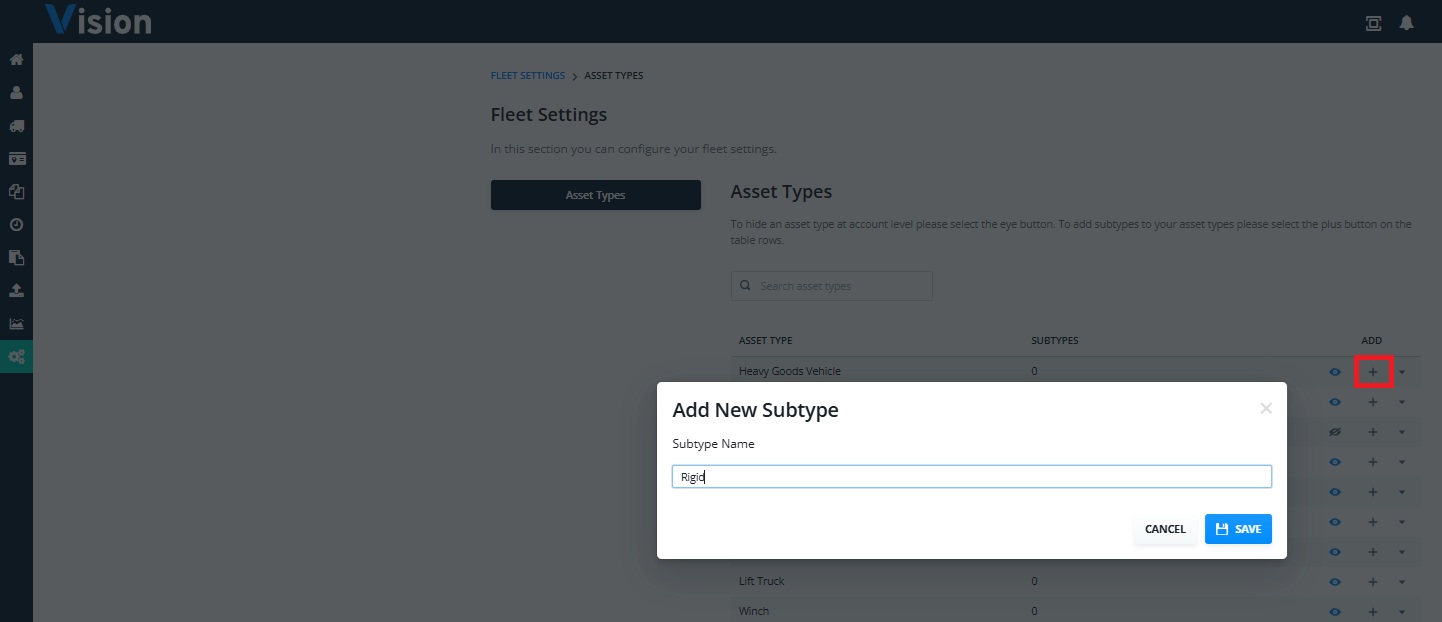
Once saved, click the down arrow to view your subtypes:
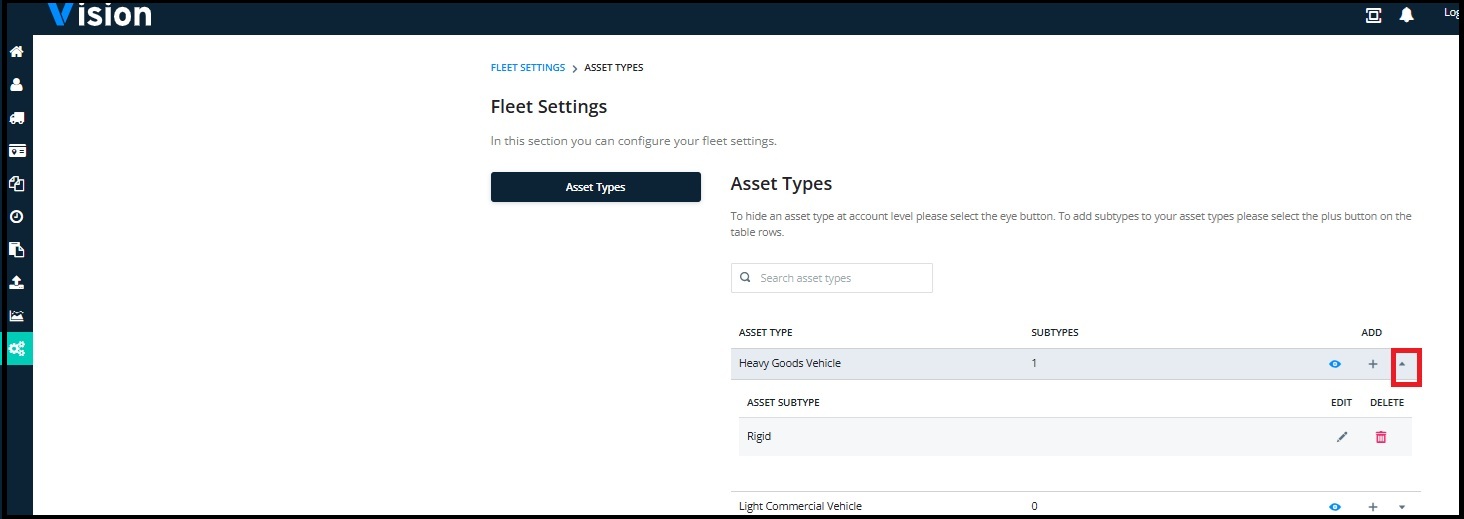
Hiding the vehicle and visibility of the asset sub type will is only visible on the new Manage my Vehicle pages, details of which can be found here
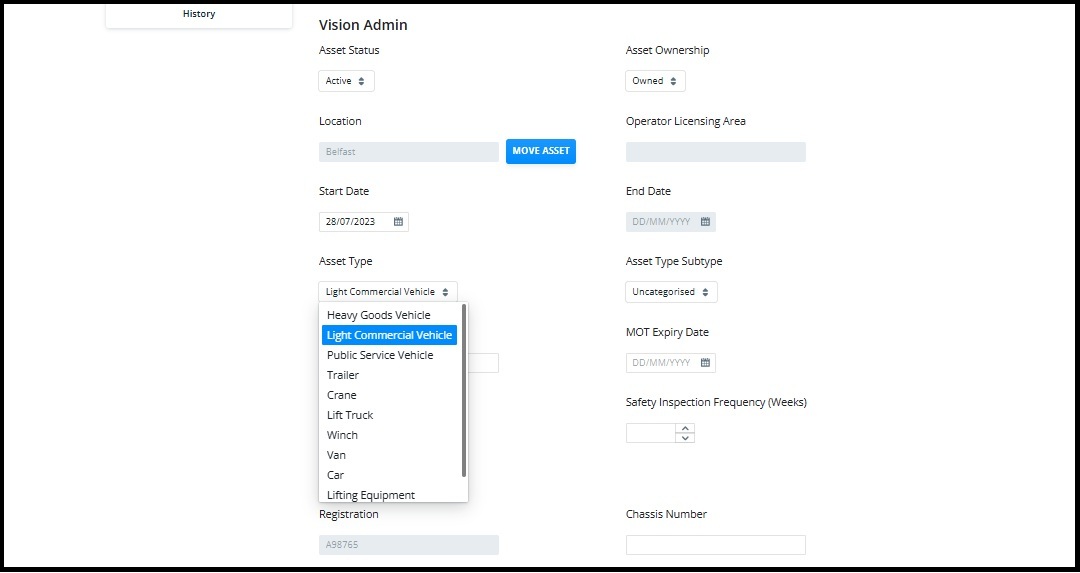
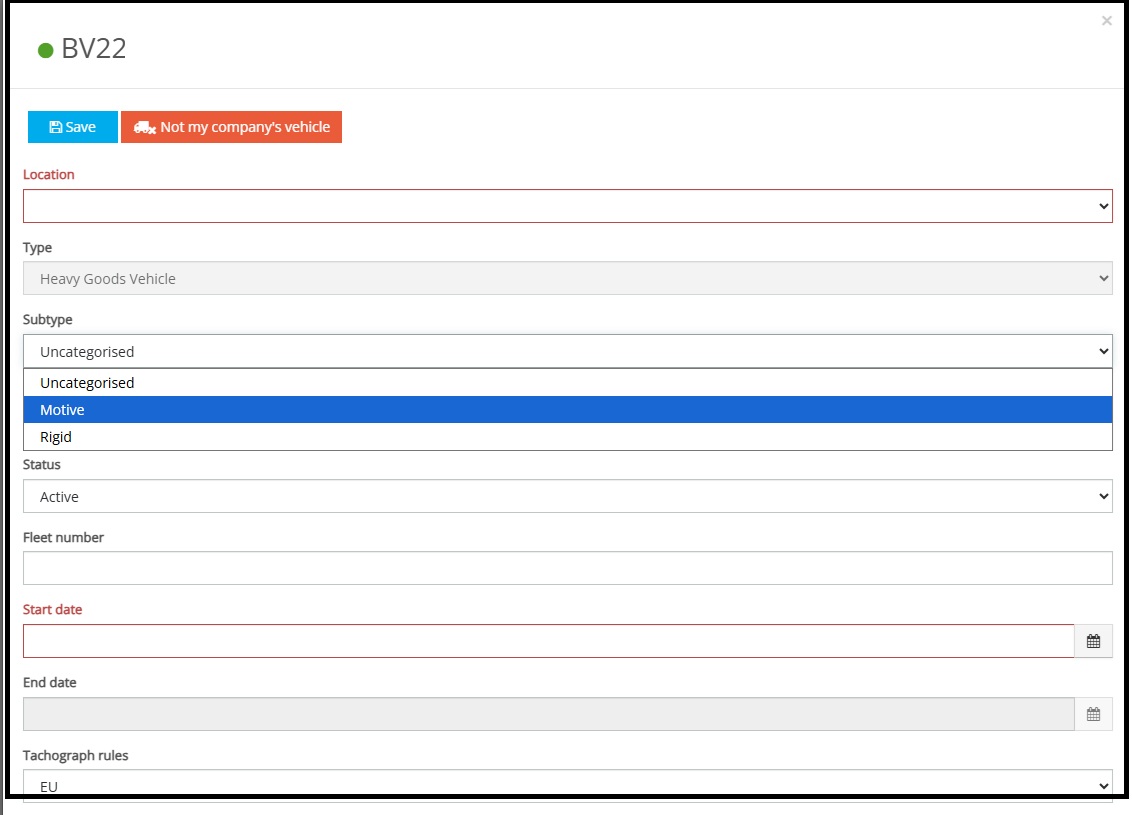
When set the subtypes will be shown in the Holding area selection:
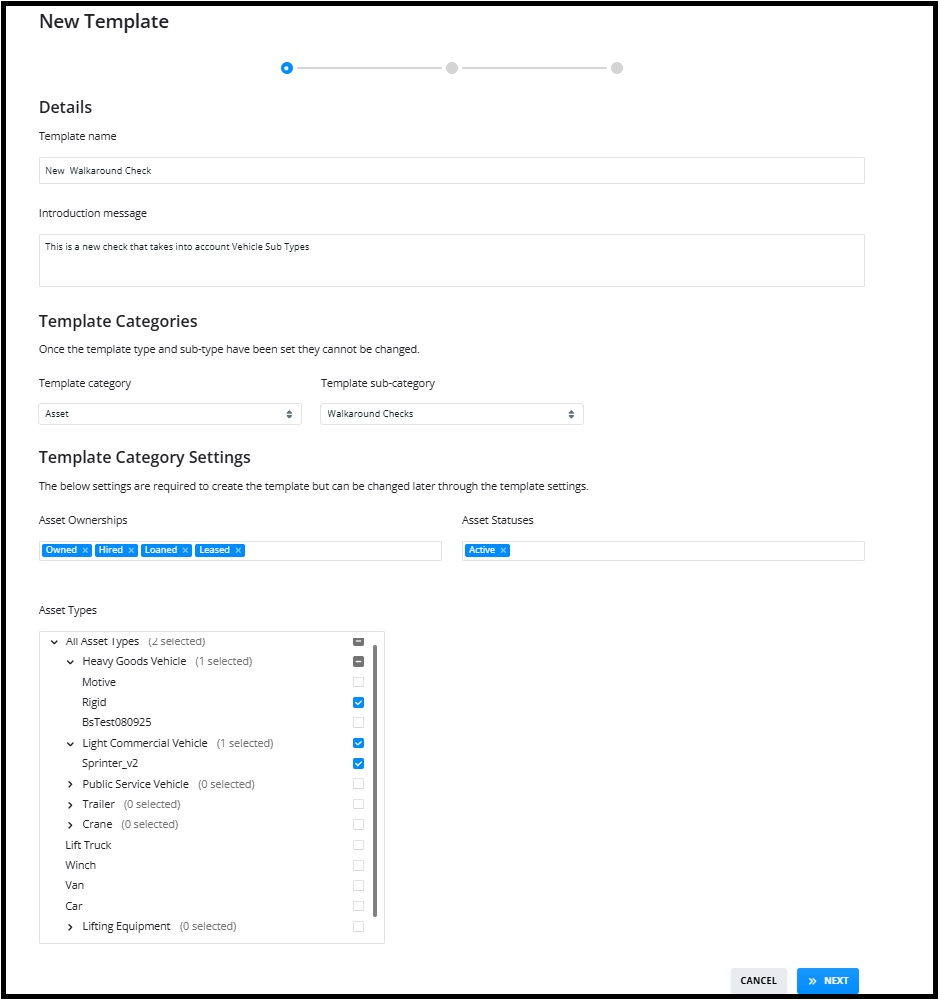
The hiding of assets and creation of subtypes will also affect new Check Templates set up:
Self Service Reporting
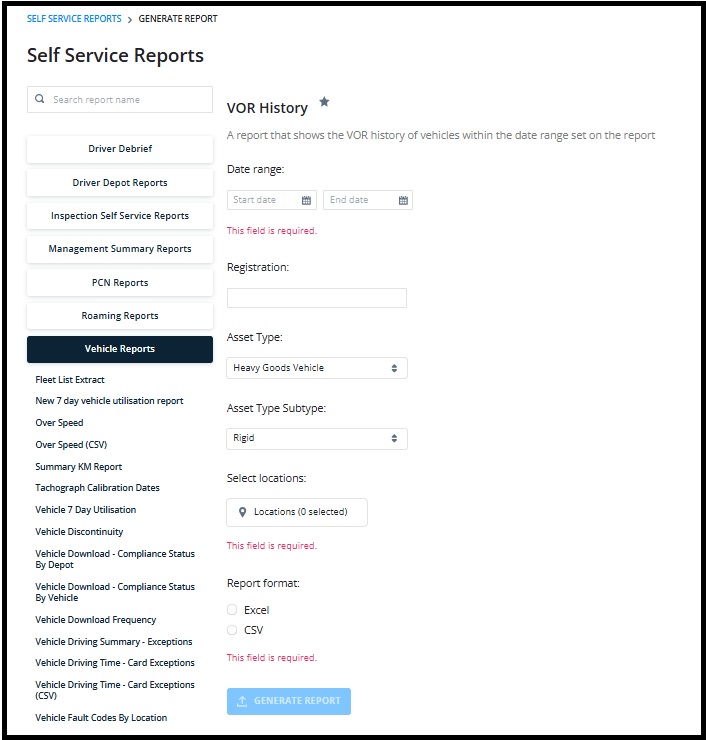
Vehicle reports that require an asset type to be selected will also now include an option on the parameters to report by sub type. This will affect the following reports:
- 7 Day Utilisation Report
- Vehicle Fault Codes by Location
- Vehicle Fault codes by Vehicle
- Vehicle Utilisation Report
- VOR History
- Lead in/Lead Out
More Vision Help Articles Articles



Related Pages
Check out more news and media
Discover More

Become a Member
Our membership packages provide you with the tools to keep your operation safe, efficient and compliant.
Learn more

Press Releases
Latest updates, insights, and expert commentary shaping the future of logistics, transport, and supply chains across the UK.
Learn more

Services
Discover the full range of services from Logistics UK, designed to keep your operation safe, efficient, and compliant.
Services

Events
Discover upcoming Logistics UK events designed to bring industry leaders, policymakers, and businesses together.
Events
Stay Ahead. Stay Compliant. Stay Connected.
Join thousands of logistics professionals using Logistics UK to navigate industry change with confidence.
Join Us